
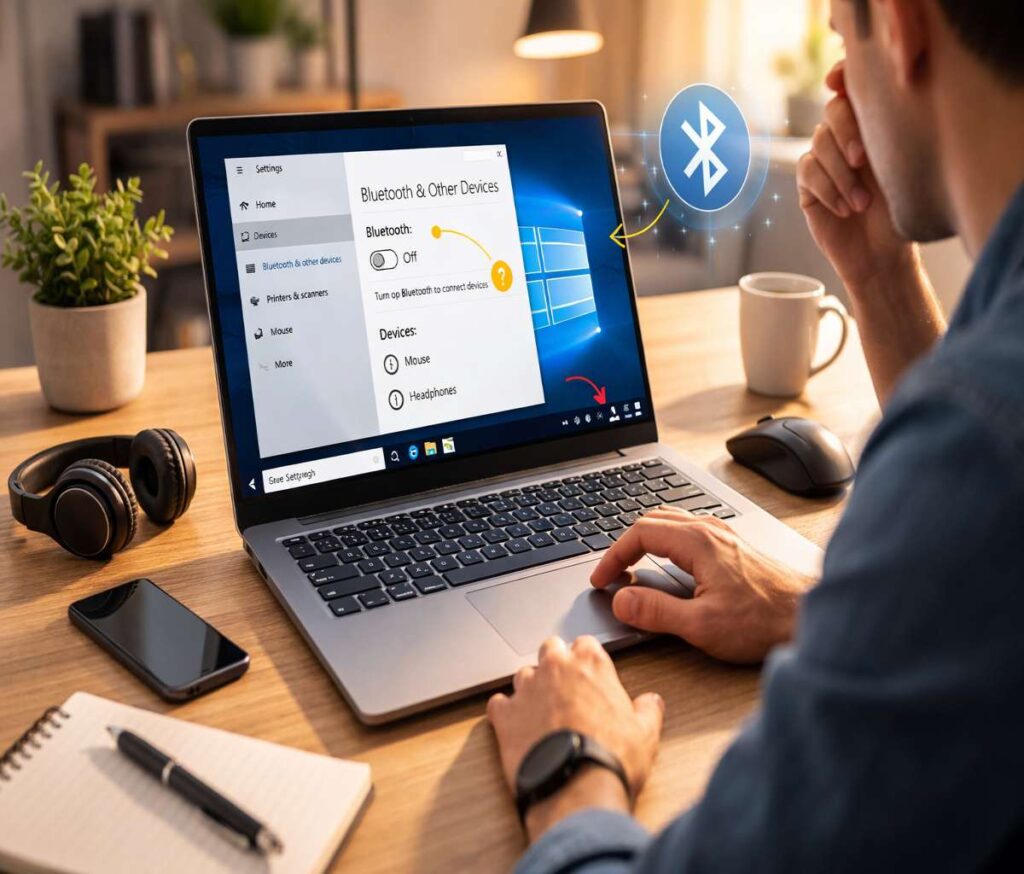
You open Settings, you go looking for Bluetooth… and the switch just isn’t there. No On/Off toggle. No “Bluetooth & other devices” section the way you remember it. If that’s you, you’re not alone, and you’re not imagining things.
This guide walks you through the most common reasons the bluetooth toggle missing windows 10 problem happens, and what to check first so you don’t waste time bouncing between random menus. I’ll keep the tone calm, but I’ll also be blunt in a few spots—because sometimes the answer really is, “your PC doesn’t have Bluetooth hardware.”
And if you’re still trying to get the basics right (turning Bluetooth on once it exists), the main article is here: how to turn on bluetooth windows 10.
Quick reality check: is Bluetooth actually supported on this PC?
I know, it’s not the most satisfying first step. But it’s the one that clears up a surprising amount of confusion.
Many laptops have Bluetooth built in. Many desktops do not—unless the motherboard includes it or you’re using a Wi‑Fi/Bluetooth combo card. If Bluetooth hardware isn’t present, Windows 10 can’t show a Bluetooth toggle because there’s nothing to control.
If you’re on a desktop (or an older laptop), it may be faster to decide this right now: do you want to add Bluetooth with a small USB Bluetooth adapter? That’s often the simplest “fix,” even if it feels almost too easy.

Step 1: Check Airplane mode (yes, really)
Before we go deep: make sure Airplane mode is off. Airplane mode can disable wireless radios, and Bluetooth can disappear from quick toggles when Windows thinks radios are unavailable.
Open Action Center (Windows + A) and look for Airplane mode. If it’s on, turn it off, wait a few seconds, then re-check Settings.
If you’re also missing the Bluetooth tile in Action Center, you might want the related guide: add Bluetooth to Action Center in Windows 10. Sometimes it’s just a UI thing. Sometimes it’s not. But it’s an easy check.
Step 2: Look for Bluetooth in Device Manager
This is the most useful “am I dealing with hardware or Windows?” checkpoint.
- Right-click the Start button.
- Select Device Manager.
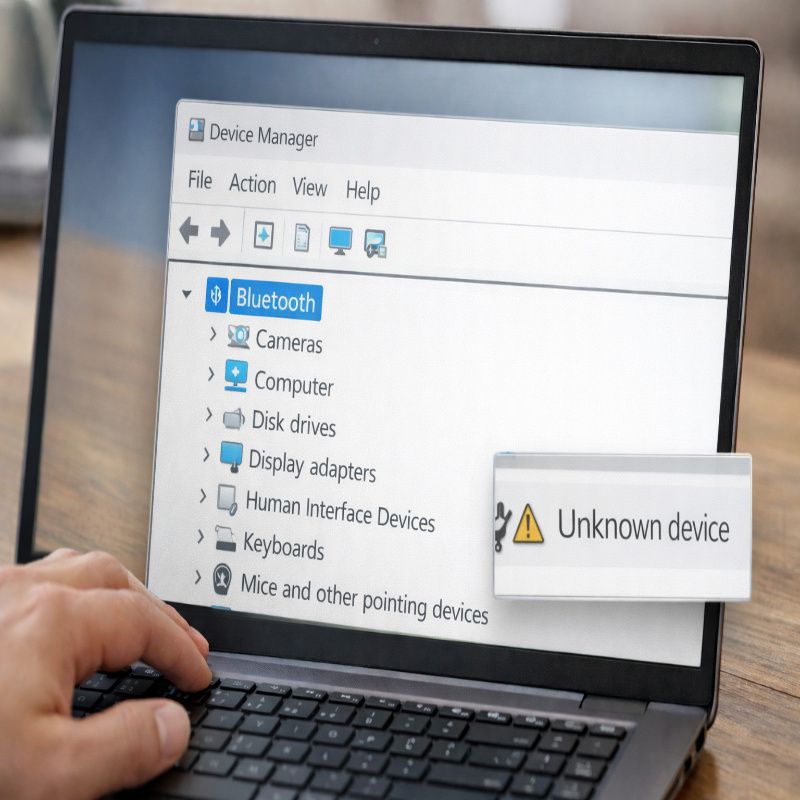
- Look for a Bluetooth category.
- Also expand Network adapters and see if there’s anything with “Bluetooth” in the name.
What you’re trying to learn: is Windows detecting a Bluetooth adapter at all?
- If you see a Bluetooth section: good sign. It’s probably drivers, services, or a disabled adapter.
- If you see “Unknown device” or a device with a warning icon: also a sign—Windows sees something, but the driver is unhappy.
- If you see nothing Bluetooth-related anywhere: you may not have Bluetooth hardware, it may be disabled at a firmware level, or the driver stack is missing in a way Windows can’t even enumerate properly.
Step 3: If Bluetooth is disabled, enable it
Sometimes the toggle is missing simply because the adapter is disabled.
- In Device Manager, right-click your Bluetooth adapter (if present).
- If you see Enable device, click it.
- Reboot once afterward. (I know. Still worth doing.)
Then check the pillar flow again for turning it on: how to turn on bluetooth windows 10.
Step 4: Update or reinstall Bluetooth drivers
If Windows detects a Bluetooth adapter but Settings still won’t show the switch, drivers are a very real suspect.
I’d approach this in a measured way:
- Restart first. If Windows just updated, services and drivers can be in a weird half-state.
- Then try a driver update through Windows Update (including optional updates, if you’re comfortable with that).
- If you know your laptop brand (Lenovo, HP, Dell, etc.), using the manufacturer’s official support page for your exact model is often safer than guessing.
Reinstalling can help too, but it’s a “do this carefully” step. In Device Manager, you can uninstall the Bluetooth adapter and reboot so Windows attempts to reinstall it. I’m not going to pretend it’s risk-free—if you’re relying on Bluetooth for your only mouse/keyboard, have a wired backup nearby.
Step 5: Check the Bluetooth Support Service
This one feels slightly “IT department,” but it matters. If the service responsible for Bluetooth support is stopped or disabled, Windows can behave like Bluetooth doesn’t exist.
- Press Windows + R, type services.msc, press Enter.
- Find Bluetooth Support Service.
- Make sure it’s not Disabled; if it’s stopped, start it.
- Reboot and check Settings again.
If you’re thinking, “Why would that service be off?”—good question. Sometimes third-party “optimizer” tools do it. Sometimes a driver install does it. Sometimes Windows does Windows things.
Step 6: BIOS/UEFI or hardware switch checks (mainly laptops)
On some laptops, wireless radios can be disabled at a deeper level—via BIOS/UEFI settings or a physical function key toggle. If Bluetooth never appears in Device Manager, this is one of those possibilities that’s annoying but real.
I can’t give a perfect universal path because it varies by manufacturer. But if your laptop has a wireless icon key (often Fn + something), try toggling it, then reboot. If you’re comfortable in BIOS/UEFI, look for wireless settings and confirm Bluetooth isn’t disabled.
Step 7: Decide whether a USB Bluetooth adapter is the cleanest fix
Sometimes troubleshooting turns into a time sink. If this PC simply doesn’t have Bluetooth—or if you need a quick, reliable solution—a USB Bluetooth adapter is often the simplest way to get moving.
It’s not the most elegant answer, and yet I’ve seen it save hours. Plug it in, let Windows install drivers, then use the normal pairing steps. If you need those pairing steps, we also have a focused walkthrough here: pair a Bluetooth device in Windows 10.
Common questions (the “yes, that happens” section)
Why is Bluetooth missing from Settings but my device is paired already?
This can happen after updates or driver issues. Windows may remember old pairing records, but if the adapter/driver isn’t working, the Settings toggle can vanish or become inaccessible.
Bluetooth shows in Device Manager, but there’s still no toggle
That usually points to drivers, services, or a stuck state. Try the service check, then drivers, then a reboot cycle. If it’s still missing, removing the device and letting Windows reinstall on reboot can help—just keep that wired backup handy.
I only see “Bluetooth & other devices” sometimes
Intermittent appearance often suggests flaky drivers or a power-management issue. It can also happen if a laptop toggles wireless radios off to save power. It’s frustrating, and it’s one of those situations where updating the chipset/wireless drivers from the manufacturer can make a real difference.
Conclusion: treat it like a detection problem first
If you take one idea from this article, let it be this: when the bluetooth toggle missing windows 10 issue shows up, it’s usually not a “hidden setting.” It’s usually that Windows isn’t detecting Bluetooth hardware correctly, the adapter is disabled, or the drivers/services aren’t cooperating.
Once Bluetooth is detected and the toggle comes back, the main how-to is straightforward—and you can follow it here: how to turn on bluetooth windows 10. If you get stuck specifically at pairing, this guide helps too: pair a Bluetooth device in Windows 10.


More Stories
Dyson V8 vs V11: What I’d Buy (and why)
Telegram Without Phone Number: What Actually Works
How to delete Text Messages On iPhone for Both Sides