
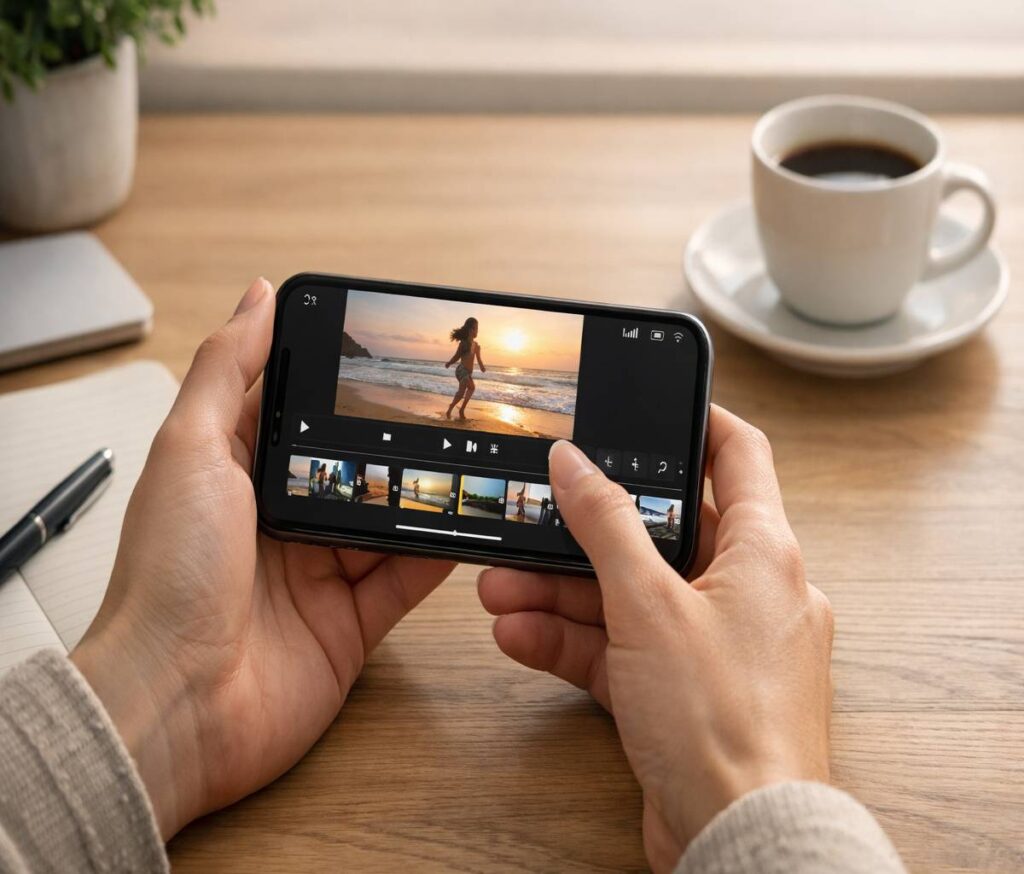
If you want to figure out how to combine videos on iPhone without making the whole thing feel harder than it should, the good news is that it is actually pretty simple. For most people, iMovie is the easiest place to start because Apple’s own workflow lets you select clips, arrange them in order, make small edits, and save the finished video back to your Photos library. That said, not everyone wants to use iMovie, and honestly, not every project needs the same approach.
Some people are stitching together a quick birthday clip. Others are trying to make a clean Instagram Reel, a product demo, a school presentation, or a short travel montage that does not look messy. Those are all slightly different jobs. So this guide walks through the built-in method first, then the alternatives, then the little details that usually trip people up, like clip order, quality loss, awkward transitions, and export settings.
If you are on Webbozz because you want the most practical answer, that is what this article aims to be. Not just a list of apps. Not just a few basic steps. A proper, useful guide on how to combine videos on iPhone in a way that feels realistic for beginners and still helpful for people who have edited a few clips before.
Who this guide is for
This article is for everyday iPhone users who want to merge clips quickly and get a result that looks clean enough to share. That includes parents, students, creators, freelancers, small business owners, and, really, anyone who keeps ending up with three or four separate clips and wishes they were one video instead.
You do not need editing experience to follow along. In fact, if you have ever opened a video editing app, stared at the timeline for a second, and then backed out because it looked like too much, you are probably in the right place.
How to combine videos on iPhone with iMovie
If you only need one method, this is the one to learn first. Apple recommends using iMovie to merge multiple videos from your photo library, and the process is pretty straightforward once you know where everything is.
How to combine videos on iPhone step by step in iMovie
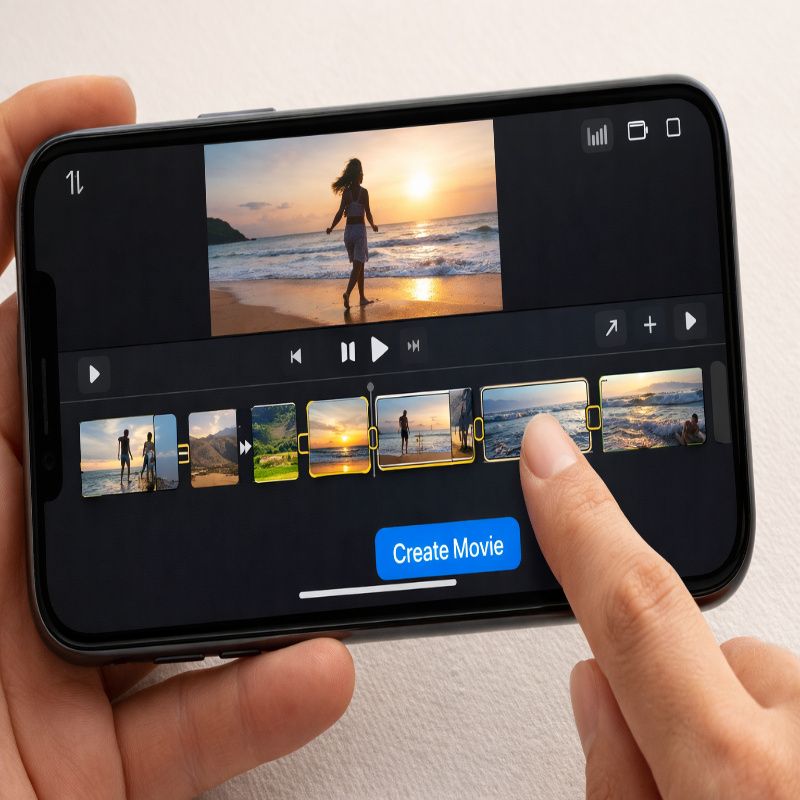
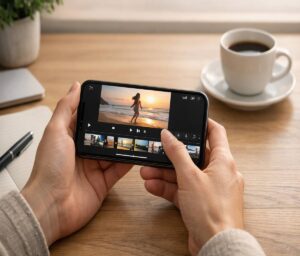
Start by opening iMovie on your iPhone. If it is not installed, download it from the App Store first. Once you are inside the app, tap Start New Project or go back to the Projects screen if you do not see that option, then choose Movie.
Next, tap Media, then Video, then All to browse your clips. Tap the first video you want to use, select it, and keep adding the other videos you want to combine. iMovie places the clips in the order you select them, which is useful to know because it saves time later if you are already thinking about sequence.
After that, tap Create Movie. iMovie will place your selected clips on a timeline so they play as one merged video. If you want to preview the result, tap the play button and see how it flows before making any changes.
When you are happy with it, tap Done, then use the share button and choose Save Video to export the finished file to your Photos library. That is the core Apple method, and for a lot of users, it is enough.
Reordering clips in iMovie
If the clips are in the wrong order, do not worry about it too much. In the timeline, touch and hold the clip you want to move, then drag it to a new position. That one small feature makes iMovie more forgiving than people expect.
If your timeline feels cramped and hard to manage, pinch to zoom out. It sounds minor, but it makes a surprising difference when you are working with several short clips and trying not to move the wrong one.
Trimming and transitions
Once your clips are combined, you can trim each one by tapping it in the timeline and dragging either edge inward. If it refuses to go longer, that means you have already reached the full available length for that clip. A lot of beginners think the app is glitching there, but it usually is not.
You can also adjust the transition between two clips by tapping the little icon between them. The default transition is usually Dissolve, which works fine for most casual edits. Personally, I think simple transitions tend to look better on phones anyway. Fancy ones often make short videos feel more dated than polished.
If you realize you forgot a clip, tap the add button, choose Video, then All, and insert the extra footage into your project. This is one reason iMovie works so well as a default option. It is simple, but not too simple.
When iMovie is the best choice
iMovie is usually the best option when you want a free way to merge clips, keep things relatively clean, and avoid a watermark. It also makes sense if you want a built-in Apple-friendly workflow rather than handing your files over to a third-party app right away.
It is especially useful for simple projects like family videos, class assignments, short how-to clips, and quick social posts. For many users, it strikes the right balance. Not powerful enough for every situation, perhaps, but more capable than people assume.
When iMovie may not be enough
There are moments when iMovie feels a little limited. Maybe you want more advanced templates, quicker social-media formatting, stronger text tools, or easier effects. Or maybe you just do not want to use iMovie at all, which is fair.
That is where other workflows come in. If that is your situation, it helps to read a more specific guide on how to combine videos on iPhone without iMovie, because the best alternative depends on whether you want speed, quality control, or creative options.
Other ways to combine videos on iPhone
Outside iMovie, there are plenty of apps that let you merge clips on an iPhone. Some are designed for quick one-tap editing, while others are closer to lightweight editing suites with music, filters, captions, templates, and social export presets.
Wondershare’s overview of iPhone video merging tools highlights a long list of apps including iMovie, FilmoraGo, Splice, Videoshop, Vimeo, and several simpler merge-focused tools. That tells us something useful: users are clearly searching for options, but they probably do not need ten apps explained with equal weight. They need the right app for their specific use case.
Best types of apps for different users
Here is a simpler way to think about it.
If you want the easiest free method, use iMovie. If you want stronger social editing tools, look at apps like Splice or FilmoraGo. If you want more templates and effects, a creator-focused editor may suit you better. And if you mostly care about exporting fast with minimal editing, a very basic merge app can work, though these are often less flexible in the long run.
For a fuller side-by-side breakdown, see best apps to merge videos on iPhone. That kind of comparison is helpful when you are stuck between “free and simple” versus “more powerful but busier.” I have seen people waste time downloading three apps when one clear comparison would have solved it.
How to combine videos on iPhone without losing quality
This is one of the most common concerns, and it is a fair one. People merge clips, send the file somewhere, and suddenly the result looks softer, blurrier, or more compressed than the originals. Sometimes the editor gets blamed when the real issue happens during export or sharing.
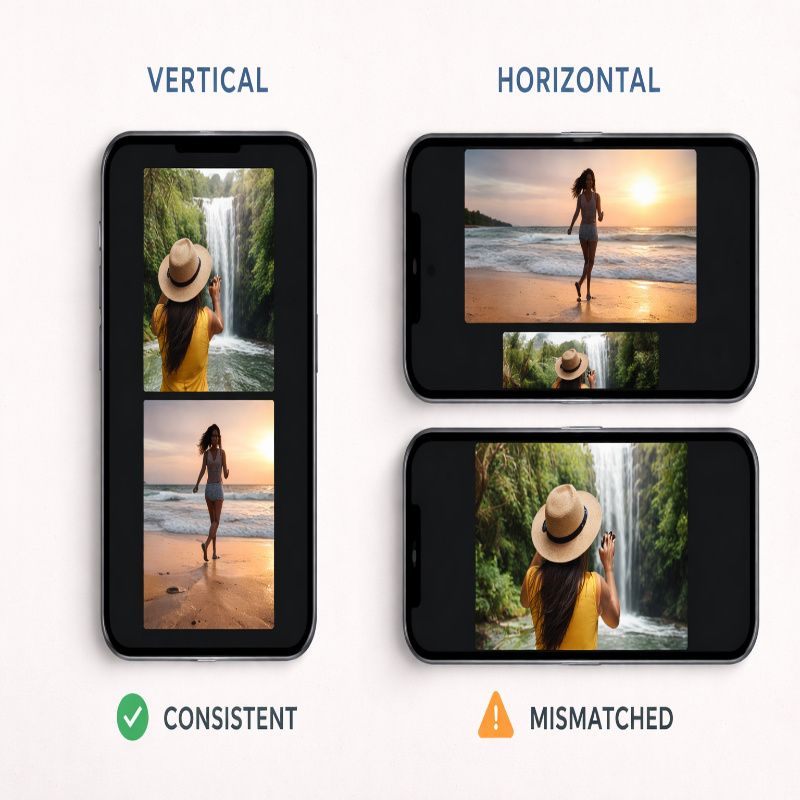
If you want the best chance of preserving quality, start with clips that already match as closely as possible in resolution, orientation, and frame style. For example, if one clip is vertical, another is horizontal, and a third was pulled from a messaging app, the final result can feel inconsistent even before export enters the picture.
Simple quality rules that actually help
Try to keep your source clips consistent. If your original videos are all 1080p vertical clips shot on the same iPhone camera, your merged result is much more likely to look smooth and uniform. If one clip is 4K landscape and another is a compressed screen recording, some compromise is almost unavoidable.
Use subtle transitions rather than aggressive ones. This does not directly improve technical quality, but it does make differences between clips less obvious. Wondershare’s general advice about maintaining the same resolution and aspect ratio is sensible here, even if the rest of those app roundup articles can feel a little too broad at times.
Be thoughtful about where you share the exported video. Saving to Photos is one thing. Sending the file through a messaging app that compresses media is another. A lot of users think they “lost quality during editing” when the more likely cause is compression after export.
If this is the part you care about most, read how to merge videos on iPhone without losing quality for a more focused walkthrough. That topic deserves its own space because the answer is not just “pick HD and hope for the best.”
Common mistakes when merging videos on iPhone
Most problems are not dramatic. They are just annoying. And they usually come from a handful of predictable issues.
Picking clips in the wrong order
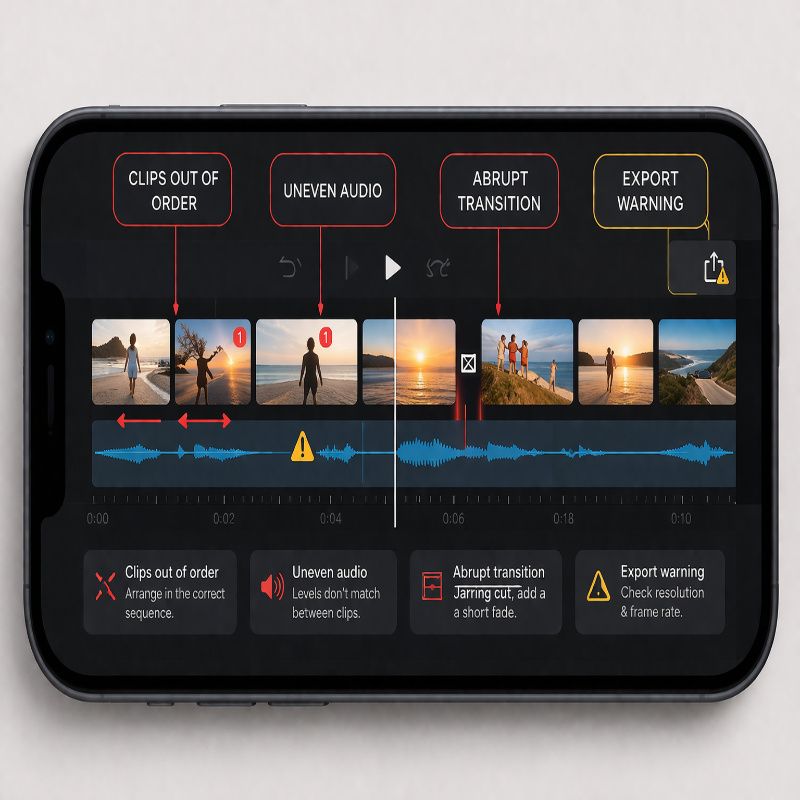
In iMovie, videos are combined in the order you select them. If you tap them casually and only think about sequence later, you may end up reorganizing the timeline more than necessary. Not a disaster, but it does slow things down.
Mixing vertical and horizontal clips
This is probably the visual issue people notice fastest. A merged video made from both portrait and landscape clips can end up with black bars, awkward cropping, or a layout that just feels inconsistent. Sometimes that mismatch is fine if the project is casual, but for anything polished, it is better to choose one orientation and stick with it.
Using too many transitions
A transition between clips can help a video feel smoother. Ten different transitions in a 30-second montage usually does the opposite. It makes the edit feel busy and, somehow, older than it is.
Ignoring audio
People focus on visuals and forget that abrupt audio changes are often more distracting than a rough cut. If one clip is loud, the next is quiet, and another has wind noise, the finished video can feel uneven even if the pictures look fine. This is one area where a little extra editing effort goes a long way.
Exporting without previewing
It sounds obvious, but lots of people skip the final preview. Then they notice a clip is out of order, trimmed too tightly, or ending too abruptly only after the export finishes. I have done that myself, and it is always irritating because it is such an avoidable mistake.
How to make merged videos look better
Combining clips is the basic task. Making the final video feel intentional is the next step. You do not need to edit like a professional, but a few choices can make the result look much more polished.
Trim harder than you think
Most casual videos improve when you remove the shaky beginning and the awkward ending from each clip. Those extra half-seconds add up. Shorter is often cleaner, even if it feels slightly ruthless while editing.
Use one transition style
If you are using transitions, pick one style and keep it consistent. Dissolve is usually safe. Hard cuts are also fine if the rhythm works. The main thing is to avoid turning a simple video into a slideshow of effects.
Add music carefully
Background music can help unify multiple clips, especially if the original audio varies a lot. But keep it subtle if people are speaking in the video. Otherwise, the finished result can feel oddly crowded. A gentle soundtrack often works better than a dramatic one, even when dramatic feels more fun in the moment.
Think about the destination
A video for Instagram Stories, TikTok, YouTube Shorts, or a family group chat does not need exactly the same framing or pacing. Before you merge anything, ask where it is going. That one decision often determines orientation, clip length, text size, and whether you need captions or not.
Built-in method vs third-party apps
There is no single right answer for everyone, so here is the practical version.
Use iMovie if you want a free, trusted, relatively simple method with enough editing control for most everyday needs. Apple’s own support instructions cover the basics clearly: start a new movie project, choose your clips, create the movie, edit the order if needed, then save the final video back to your library.
Use a third-party app if you need stronger templates, more text styles, easier social resizing, or a faster workflow for content creation. The trade-off is that some apps add watermarks, push subscriptions, or crowd the interface with features you may not use. So yes, more features can help, but they can also get in the way a bit.
Troubleshooting problems when combining videos
iMovie is not installed
That one is simple. Download it from the App Store and continue with the standard workflow. Apple provides iMovie as a free app if it is missing from your device.
The video will not export
If your project refuses to export, start by checking available storage on your iPhone. Large video files, especially longer or higher-resolution ones, can fail if your device is low on space. Closing other apps and trying the export again can also help, though it feels almost too simple to mention.
The final video looks blurry
Check the quality of the original clips first. If those clips were already compressed or downloaded from another platform, the editor cannot restore missing detail. Also look at how you shared the final file afterward, since many apps compress videos automatically.
The clips look mismatched
If one clip is darker, shakier, or framed differently than the others, that inconsistency will carry into the final result. In some cases, it adds a casual homemade feel. In others, it just looks uneven. The safest fix is to start with clips that are visually similar.
The audio jumps between clips
Trim noisy parts where possible, lower harsh background sound, or add light music to help bridge the cuts. You do not always need advanced editing for this. Sometimes a cleaner sequence and a little background track are enough to make the whole video feel more deliberate.
Can you combine videos in the Photos app?
This question comes up a lot because people naturally assume the Photos app should do it. On its own, Photos is useful for viewing, trimming, organizing, and sharing clips, but Apple’s support guidance for actually combining multiple videos points users to iMovie rather than a direct merge feature inside Photos.
So if you are looking for a built-in Apple route, think of Photos as the source library and iMovie as the editing tool. It is a small distinction, but an important one. Many people spend time hunting for a merge button inside Photos that is not really there in the way they expect.
FAQ
What is the easiest way to combine videos on iPhone?
For most users, the easiest way is to use iMovie. Create a new movie project, select your clips, arrange them, preview the result, and save the final video to Photos.
Can I combine two videos on iPhone for free?
Yes, you can. iMovie is free and gives you the core tools needed to merge clips, reorder them, trim them, and export a finished video without paying for a separate app.
How do I combine videos and photos on iPhone?
You can do this in iMovie by creating a movie project and adding both media types to the timeline. Once they are in place, you can arrange them, adjust durations, and export the project as one video.
How do I merge videos on iPhone for Instagram or TikTok?
The basic process is the same, but you should think about vertical framing, pacing, and music before exporting. If social formatting matters more than simplicity, a third-party editor may be more convenient than iMovie.
Will merging videos reduce quality?
Not necessarily. Quality loss is more likely when source clips are inconsistent, export settings are poorly chosen, or the file is later shared through a platform that compresses video.
Final thoughts on how to combine videos on iPhone
If you came here just wanting the simplest answer on how to combine videos on iPhone, start with iMovie. It is free, Apple-supported, and reliable enough for most people. And if your needs are more specific, whether that means skipping iMovie, finding a better app, or protecting video quality, the linked guides throughout this article should help you go a little deeper without getting lost in unnecessary detail.



More Stories
Best Budget Mechanical Keyboards in 2026: What to Buy (and What to Avoid)
Vimeo to MP3 Converter: Best Tools That Actually Work (Free & Online)
No-SIM Telegram signup with Fragment anonymous numbers