
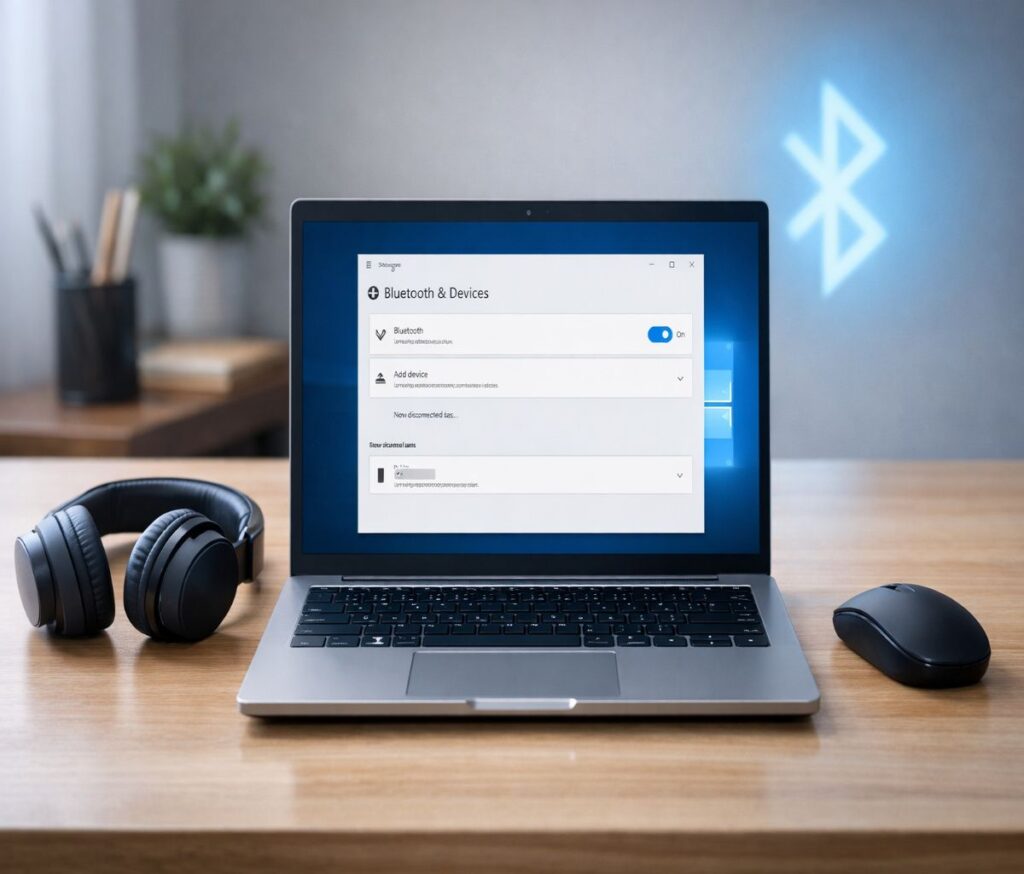
If you’re here because you can’t hear anything through your new headphones, or your mouse suddenly decided it’s “wired-only now,” I get it. This guide shows how to turn on bluetooth windows 10 in the two fastest, most reliable ways—and what to do if the Bluetooth switch is missing entirely.
We’ll keep it practical. I’ll point you to the exact menus Windows 10 uses (yes, the ones that are easy to forget), and I’ll also show you how to pair a device right after you turn Bluetooth on.
Before you start: do you actually have Bluetooth?
This sounds obvious, but it’s the #1 reason people get stuck: not every Windows 10 PC has a Bluetooth adapter. Microsoft notes that if the Bluetooth setting is missing, your device might not have a Bluetooth adapter, or the Bluetooth drivers might not be installed.
If you’re on a laptop, you probably have Bluetooth. If you’re on a desktop, it’s a toss-up—some motherboards include it, many don’t. If it turns out you don’t have Bluetooth, a small USB Bluetooth adapter can add it.
If you want a deeper troubleshooting path for the “Bluetooth option is missing” situation, you can jump to our guide here: Bluetooth toggle missing in Windows 10.
How to turn on bluetooth windows 10 (two quick methods)
Windows 10 gives you two normal ways to enable Bluetooth: through Settings (best when you’re going to pair something right away) and through Action Center (best when you just want Bluetooth on, quickly). Microsoft documents both approaches.
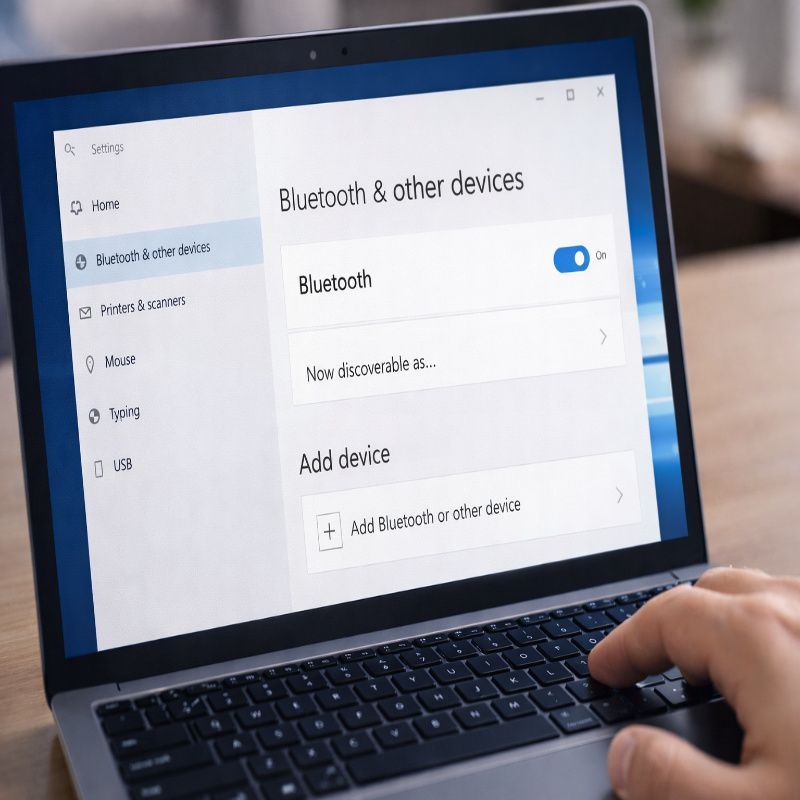
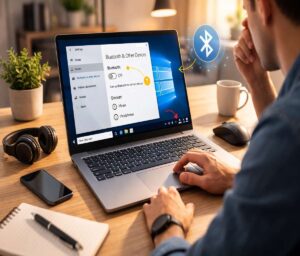
Method 1: Turn Bluetooth on in Settings
This is the “do it properly” route, and honestly, I use it most often because pairing is right there in the same screen.
- Click Start.
- Open Settings.
- Select Devices.
- Click Bluetooth & other devices.
- Turn the Bluetooth switch to On (or Off if you’re disabling it).
That’s it. If Windows detects a Bluetooth adapter, you’ll see that toggle. If you don’t see it at all, don’t assume you’re missing a secret setting—it often points to hardware/driver detection, as Microsoft explains.
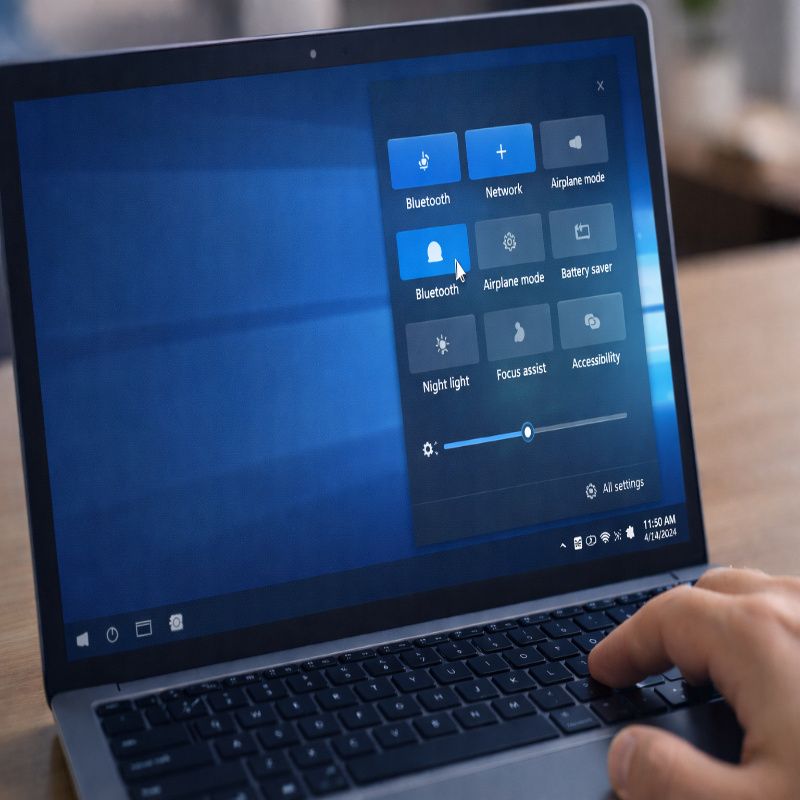
Method 2: Turn Bluetooth on from Action Center (the fast way)
If you’re in the middle of a call or trying to connect earbuds before a meeting, this is the faster move.
- Press Windows + A to open Action Center.
- Select the Bluetooth tile to toggle it on or off.
If you don’t see the Bluetooth tile in Action Center, it might simply not be added to your quick actions. There’s a specific fix for that (and it’s quick), so I’d use this guide: add Bluetooth to Action Center in Windows 10.
How to pair a Bluetooth device after you turn it on
Turning Bluetooth on is only half the job. Next you’ll want to pair your device—headphones, keyboard, mouse, speaker, whatever it is. Microsoft’s recommended pairing flow in Windows is the “Add device” path inside Bluetooth settings.
Here’s the cleanest way to do it in Windows 10:
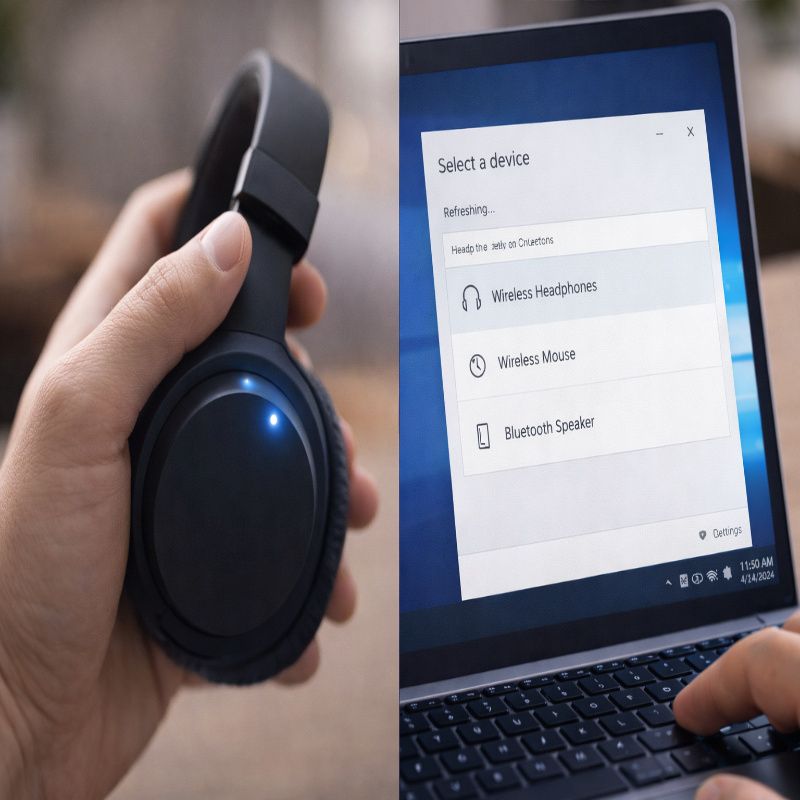
- Go to Start > Settings > Devices > Bluetooth & other devices.
- Select Add Bluetooth or other device.
- Choose Bluetooth.
- Pick your device when it appears, then follow any prompts (PIN codes are common with keyboards, less common with headphones).
A small pause here, because this trips people up: your accessory must be in “pairing mode.” For headphones, that usually means holding the power button for a few seconds until you see a flashing light. For keyboards, it might be a dedicated Bluetooth button. The exact method depends on the brand.
If you want a more focused walkthrough (including the little “why is my device not showing up?” moments), we keep a dedicated guide here: pair a Bluetooth device in Windows 10.
Swift Pair: when Windows shows a pop-up
Sometimes Windows will pop up a notification saying it found a nearby Bluetooth device. Microsoft describes this Swift Pair experience: you may be asked to allow Swift Pair the first time, and then you can select Connect from the notification to start pairing.
It’s convenient. It’s also slightly unpredictable—some devices support it, some don’t—so if you don’t get the pop-up, it doesn’t mean anything is broken. You can always fall back to “Add Bluetooth or other device” in Settings.
When Bluetooth won’t turn on (or the option is missing)
Let’s talk about the more annoying scenarios. Because yes, Bluetooth can be moody. And Windows 10 has enough menus that it’s easy to think you’re doing something wrong when you aren’t.
If the Bluetooth switch is missing in Settings
Microsoft is pretty direct about this: if the Bluetooth setting is missing, your device may not have a Bluetooth adapter, or the Bluetooth drivers may not be installed. That’s why I recommend checking hardware detection before you spend an hour clicking around Settings.
At a high level, your realistic fixes are usually:
- Confirm your PC actually supports Bluetooth (or add a USB Bluetooth adapter if it doesn’t).
- Install or update Bluetooth drivers if your PC supports Bluetooth but Windows 10 isn’t showing the toggle.
- Restart after driver changes (I know, the classic advice, but it does matter with driver initialization).
For the step-by-step troubleshooting flow (including what to check first, and what to skip if you’re in a hurry), use: Bluetooth toggle missing in Windows 10.
If Bluetooth is on, but your device won’t connect
I’ll be honest: this is where people start blaming Windows, and sometimes that’s fair. But often it’s one of these:
- Your device is already paired to another phone or laptop and won’t accept a new connection until you disconnect it there.
- Your device isn’t in pairing mode (it shows up for a second, then disappears).
- The pairing record is corrupted—removing the device and pairing again often helps.
If you need to re-pair, go back to Bluetooth & other devices, select the device, remove it, and pair again using the same “Add Bluetooth or other device” flow Microsoft describes.
Where Bluetooth settings hide in Windows 10 (the useful extras)
Once your Bluetooth is working, Windows 10 has additional Bluetooth options that aren’t always obvious. Microsoft’s “Find Bluetooth settings” guidance is useful here because it reminds you where Windows keeps the broader Bluetooth configuration.
These are the kinds of settings people look for after the basics:
- Managing a list of paired devices (useful if you’ve paired “too many things” over time).
- Finding the device options related to Bluetooth (the place Windows tends to tuck advanced options).
- Checking whether Bluetooth is enabled and accessible from the main Settings area.
If you’re the sort of person who likes to clean up old devices, I think it’s worth spending two minutes here. Bluetooth behaves better when your device list isn’t cluttered with three “Wireless Earbuds” entries you can’t identify.
Security and privacy tips (quick, but worth it)
Bluetooth is generally safe for everyday use, but it’s still wireless. My rule is simple: pair only with devices you trust, and turn Bluetooth off when you’re done if you’re in a public space for long stretches. Microsoft notes that turning Bluetooth off and on can also reset it, which sometimes helps connection issues.
Also, if you see a pairing request you didn’t initiate, don’t accept it. It’s usually a harmless mis-tap from someone nearby, but there’s no upside in approving random pairing prompts.
Conclusion: keep it simple, then troubleshoot calmly
To recap (without making it a whole thing), how to turn on bluetooth windows 10 usually comes down to either Settings (Start > Settings > Devices > Bluetooth & other devices) or the Action Center Bluetooth tile. If Bluetooth is missing, Microsoft’s guidance points to hardware support or missing drivers, and that’s when a focused troubleshooting checklist helps.

More Stories
Delete Text Messages on iPhone for Both Sides Not Working
Bluetooth Toggle Missing in Windows 10: what to do
Dyson V8 vs V11: What I’d Buy (and why)