
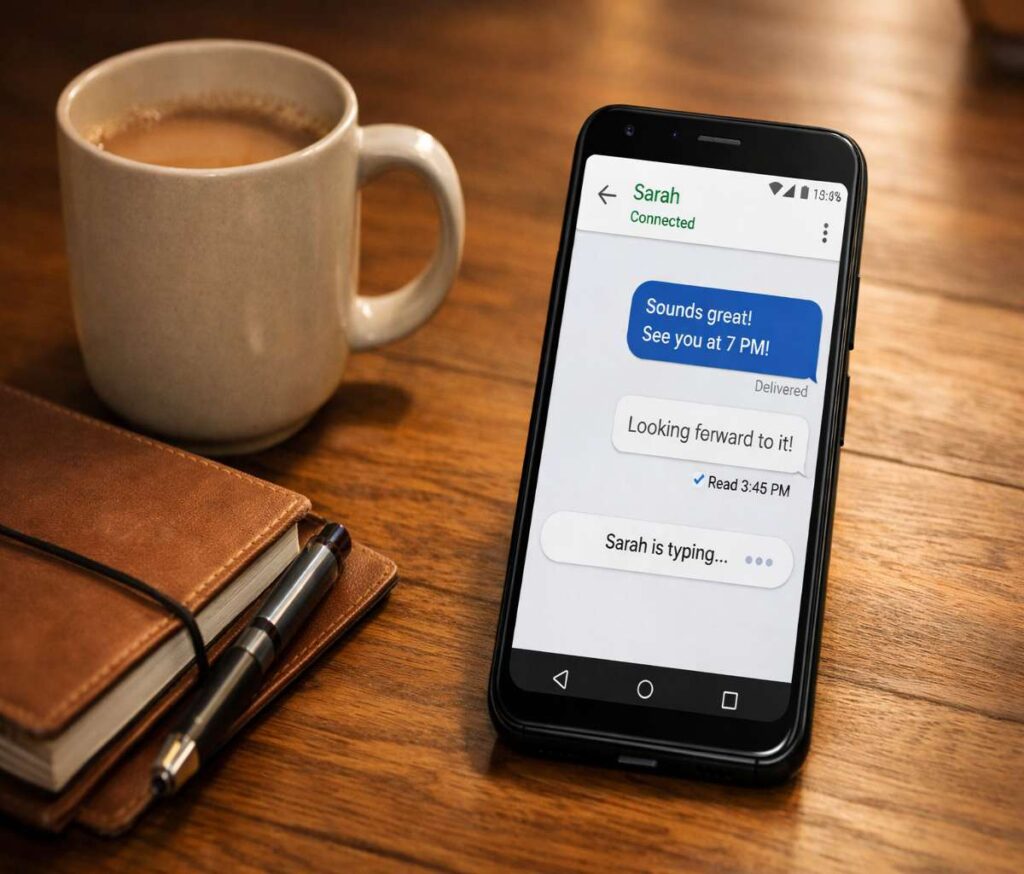
What RCS Messaging Is (In Plain Terms)
RCS (Rich Communication Services) is the messaging standard designed to replace SMS/MMS with a more app-like experience, while still using your phone number. It’s not “just another chat app.” It’s closer to “SMS, but modern,” at least that’s the promise Google and carriers have been pushing for years.
Google Messages is the most common way Android users get RCS today, and Google’s own help docs describe RCS as a modern industry standard that enables a more dynamic conversation than SMS/MMS. That includes richer media, improved group messaging, and certain security features (like end-to-end encryption in some 1:1 chats, depending on setup and platform).
RCS isn’t perfect. It can be a little… temperamental. Sometimes it flips between RCS and SMS, or you’ll see “Setting up” for hours like it’s contemplating life choices. But when it’s stable, it’s the best “default texting” experience Android has had.
RCS vs SMS vs MMS (Quick Reality Check)
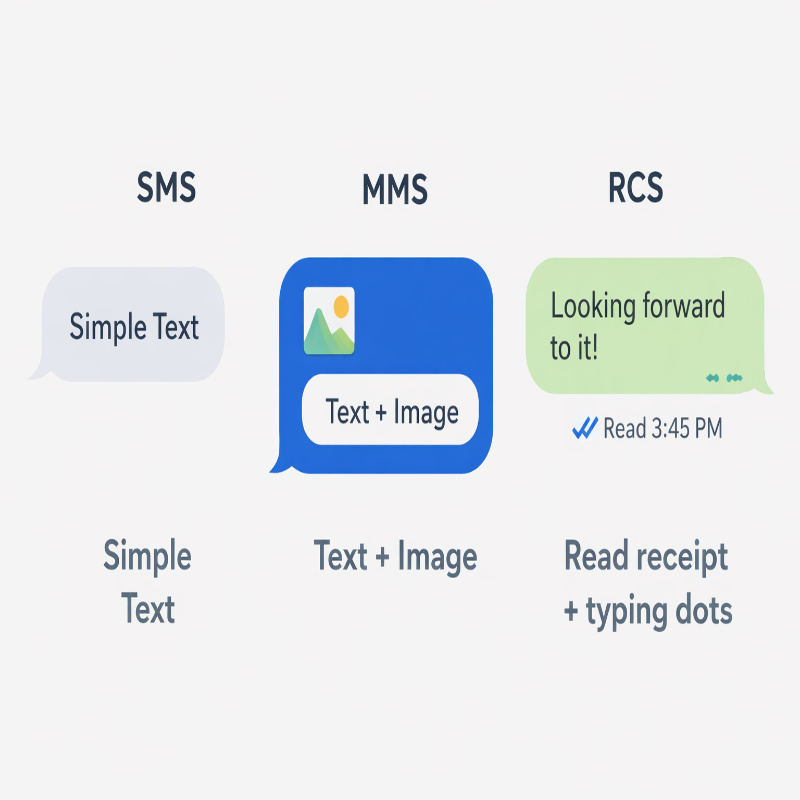
RCS is internet-based messaging tied to your phone number, while SMS is basic text over the cellular control network and MMS is the older system for photos/group texts that often relies on carrier settings like APNs. In normal use, RCS feels closer to iMessage or WhatsApp, but with the convenience of being built into your default texting app.
Here’s the practical difference you actually notice day-to-day:
- SMS: Works almost everywhere, even with weak signal. No typing indicators, no high-res media.
- MMS: Adds pictures/videos, but often compresses them heavily and breaks in group threads.
- RCS: Better media, improved group messaging, read receipts, typing indicators—assuming both sides support it and you have internet.
One important “it depends” detail: for RCS to work in a conversation, both people typically need RCS turned on, and sometimes everyone in a group thread needs it too. Google explicitly notes this requirement for RCS conversations. If someone doesn’t have RCS enabled (or their carrier/device doesn’t support it), your Messages app may fall back to SMS/MMS.
What You Need Before RCS Will Work
To use RCS on Android, you generally need Google Messages, a supported device/carrier, and a working data or Wi‑Fi connection. If any one of those pieces is missing, RCS either won’t activate or it’ll behave inconsistently.
Basic checklist:
- Google Messages installed (and set as the default SMS app).
- Carrier support for RCS (or Google’s RCS implementation via Jibe, depending on region/carrier).
- Working internet connection (mobile data or Wi‑Fi).
- A phone number that can receive SMS (important for verification).
And yes—this is where IMS quietly shows up again. RCS often sits alongside IMS-driven services like VoLTE and Wi‑Fi calling. If your phone is having bigger IMS service issues, it can spill over into messaging reliability.
If you’re also dealing with voice features failing, this may not be “just an RCS problem.” Consider the VoLTE guide too: How to Fix VoLTE Not Working on Android.
How to Turn On RCS Chats in Google Messages
To enable RCS, open Google Messages, go to Settings, find “RCS chats” (or “Chat features”), and switch it on—then follow any verification prompts. Google provides official steps for turning on RCS chats and also a dedicated help page for when you can’t turn it on.
Typical setup steps (may vary slightly by device):
- Open Google Messages.
- Tap your profile icon (top right) or the three-dot menu.
- Tap Messages settings.
- Tap RCS chats (or Chat features).
- Turn on RCS chats.
- If asked, verify your phone number (often via SMS).
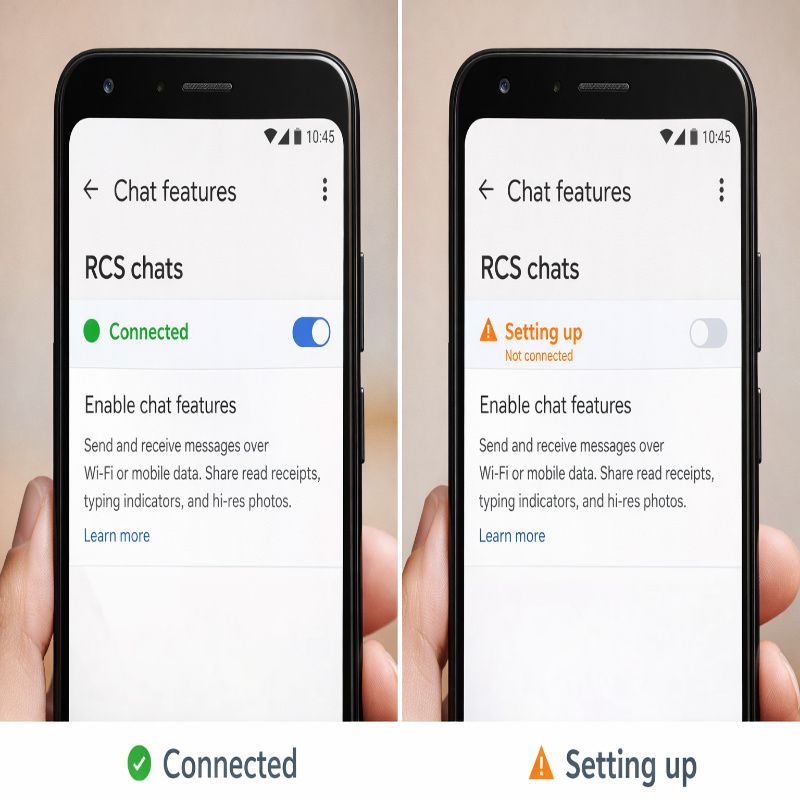
If it works, you’ll usually see a status like “Connected.” If it doesn’t… you’ll see “Setting up” or “Connecting,” and that’s where the troubleshooting section becomes your best friend.
Benefits of RCS Messaging (What You Actually Get)
RCS upgrades texting with features like read receipts, typing indicators, improved group chats, and higher-quality media sharing. It makes the default Android messaging experience feel like it belongs in the current decade.
Common features people notice first:
- Typing indicators (the “someone is typing…” cue).
- Read receipts (when enabled).
- Better group chat behavior (naming groups, adding/removing people more cleanly).
- Higher quality photo and video sharing than MMS.
- More reliable delivery over data/Wi‑Fi when cellular signal is weak.
There’s also a security angle. Google Messages supports end-to-end encryption for certain RCS chats in some cases. But it’s not universal across every device/app/carrier combination, so it’s worth being a bit cautious about assuming everything is encrypted all the time. Sometimes it is, sometimes it isn’t, and the UI indicators matter.
How to Check RCS Status (Connected vs Setting Up)
To check whether RCS is working, open Google Messages > Settings > RCS chats (Chat features) and look at the status line. If it says “Connected,” you’re usually good. If it says “Setting up,” “Connecting,” or “Not connected,” something is blocking activation.
Things that commonly cause “Setting up” limbo:
- Old Google Messages version or a buggy update.
- Carrier Services app issues (outdated or corrupted data).
- Phone number verification stuck or failing silently.
- Weak or unstable internet connection (especially filtered corporate Wi‑Fi).
- Recent SIM swap, number port, or carrier change that confused provisioning.
If you’re seeing “Setting up” for hours, don’t keep toggling it endlessly like a slot machine. It rarely helps. A clean, structured reset works better.

Fix 1: Use Google’s Official “Can’t turn on RCS chats” Steps
If RCS won’t enable, follow Google’s official troubleshooting checklist first—it covers the most common causes like device/carrier support, connection issues, and verification problems. Google has a dedicated help page for this exact problem, and it’s often more accurate than random forum advice.
The key idea from Google’s guidance is simple: RCS needs support, a working connection, and successful activation/verification. Also, Google notes that to use RCS in a conversation (especially groups), everyone may need RCS enabled—otherwise your phone may revert to SMS/MMS. That can look like “RCS is broken,” when really it’s just falling back because the other side isn’t compatible.
If your issue is less about “turning it on” and more about “it turns on but messages fail,” keep reading—those are slightly different problems.
Fix 2: Update Google Messages (And Carrier Services)
Update Google Messages and Carrier Services because RCS depends on both apps, and outdated versions can cause registration failures or stuck status states. This is one of those unglamorous fixes that works more often than people expect.
Do this:
- Open the Play Store.
- Search for Messages and update it.
- Search for Carrier Services and update it.
- Restart your phone.
Carrier Services is easy to overlook, and some people don’t even know it exists until something breaks. But it often plays a key role in RCS functionality and network-integrated messaging behavior.
Fix 3: Restart, Then Toggle Airplane Mode
A restart plus airplane mode toggle forces your phone to rebuild network sessions and can nudge RCS out of a stuck connection state. It’s basic, but it’s a clean reset for the “messaging stack” without deleting anything.
Try this sequence:
- Restart your phone.
- Turn on Airplane Mode for 30 seconds.
- Turn Airplane Mode off.
- Connect to Wi‑Fi (or ensure mobile data is active), then recheck RCS status.
If you’re in a place with weak data coverage, try the same steps while connected to stable Wi‑Fi. RCS doesn’t need cellular signal as much as it needs dependable internet.
Fix 4: Clear Cache/Storage for Messages (Carefully)
Clearing cache can fix RCS glitches without deleting messages, but clearing storage/data is more aggressive and may reset the app. This is one of those “start light, escalate only if needed” situations.
Safer first step:
- Settings > Apps > Messages > Storage & cache > Clear cache.
If RCS is still stuck and you’re comfortable resetting app settings (not necessarily deleting SMS, but it can reset some app behavior):
- Settings > Apps > Messages > Storage & cache > Clear storage (wording varies).
After clearing, open Messages again, set it as default if prompted, and try enabling RCS chats. If you’re nervous about this step, that’s reasonable. It can feel like pushing a big red button even when it isn’t truly destructive.
Fix 5: Reset Network Settings (The Reliable “Big Hammer”)
Resetting network settings fixes many RCS issues by clearing corrupted Wi‑Fi, mobile, and carrier configuration states that can block registration. You’ll lose saved Wi‑Fi networks and Bluetooth pairings, so plan for that.
General path on Android:
- Settings > System (or General management) > Reset options > Reset network settings
Once done, reconnect to Wi‑Fi, confirm mobile data works, restart, then check RCS again.
If you want a step-by-step guide by brand, link to your : How to Reset Network Settings on Android (All Brands).
Fix 6: Make Sure Your Number Can Receive SMS (Verification Matters)
RCS activation often relies on verifying your phone number via SMS, so if your SMS is broken, RCS setup can fail or get stuck. This is one of those “hidden dependencies” people miss.
If you’re not receiving verification texts, troubleshoot SMS/MMS first. RCS can’t stabilize if the underlying number verification can’t complete.
Related guide: Android SMS and MMS Not Working: Complete Fix Guide.
Fix 7: When RCS Keeps Switching Back to SMS
RCS can fall back to SMS/MMS when the other person doesn’t have RCS enabled, when either side is offline, or when the app decides the RCS route is failing. Sometimes that’s helpful. Sometimes it just looks messy.
Practical things to check:
- Does the recipient have RCS turned on?
- Are you both connected to the internet (data or Wi‑Fi)?
- Is the conversation thread labeled “Chat message” vs “Text message” in Google Messages?
In group chats, this gets even more fragile. Google explicitly notes that for RCS to work in group or 1-on-1 conversations, participants need RCS enabled—otherwise you may see fallback behavior that feels inconsistent. So if you’re in a mixed group (some RCS, some not), instability is almost expected.
Fix 8: If You Suspect IMS Issues (VoLTE/Wi‑Fi Calling Also Broken)
If RCS is failing and you also have VoLTE or Wi‑Fi calling issues, the problem may be broader IMS or carrier provisioning trouble—not just Google Messages. In that case, troubleshooting RCS alone can feel like rearranging the furniture while the floor is still shaking.
Two related reads that help narrow it down:
- IMS Service Android:symptoms, fixes, and IMS troubleshooting
- Wi‑Fi Calling on Android: setup and troubleshooting
If IMS registration is failing at the carrier level, you may need your carrier to re-provision services on your line. It’s not always quick. Sometimes it’s a five-minute fix. Sometimes it’s a support ticket that drags on. It varies wildly.
FAQ: Quick Answers
Is RCS the same as iMessage?
No—RCS is a cross-carrier messaging standard, while iMessage is Apple’s proprietary system. RCS aims to modernize SMS/MMS across platforms, but behavior still varies depending on carrier, app, and device.
Does RCS work on Wi‑Fi only?
RCS can work over Wi‑Fi or mobile data as long as you have internet. If you have no data connection at all, RCS can’t deliver messages (and your phone may fall back to SMS if possible).
Why is RCS stuck on “Setting up”?
It’s usually caused by verification trouble, a broken data path, or app/carrier services issues. Google’s own troubleshooting page is the best starting point, then move to updates, restarts, cache clearing, and network reset if needed.
Final Thoughts (A Little Honest)
RCS is the future of “default texting” on Android, and it’s getting better. But it’s still the kind of future that occasionally forgets to show up on time. When it works, it’s excellent. When it fails, it tends to fail quietly—no dramatic error, just “Setting up” forever like it’s waiting for permission from the universe.
The upside is that most RCS problems aren’t mysterious once you know the usual pressure points: Google Messages, Carrier Services, number verification via SMS, and your device’s broader IMS health. Start with Google’s official steps, update everything, reset what’s safe to reset, and only then move into the heavier fixes like network resets and carrier support.

More Stories
Best Budget Mechanical Keyboards in 2026: What to Buy (and What to Avoid)
Vimeo to MP3 Converter: Best Tools That Actually Work (Free & Online)
How to Combine Videos on iPhone