
Understanding VoLTE: What It Is and Why It Matters
VoLTE (Voice over LTE) routes your phone calls through 4G LTE data networks instead of older 2G/3G voice networks, delivering better call quality, faster connection times, and the ability to use data while calling. Think of it as the modern standard for phone calls—the difference between streaming HD video and watching grainy footage from the early internet days.
Here’s what makes VoLTE particularly important right now: major carriers have shut down or are actively shutting down their 3G networks. Verizon killed their 3G network in 2022, AT&T followed suit, and T-Mobile completed their sunset in 2024. Without functioning VoLTE, your phone might not be able to make calls at all on these networks, which makes this more than a convenience issue—it’s essential functionality.
The practical benefits are immediately noticeable when VoLTE works properly. Calls connect in about half the time compared to traditional circuit-switched calls. Voice quality is noticeably clearer, with less background noise and better handling of difficult acoustic environments. You can browse the web, use apps, or stream content while on a call without interruption. And battery life often improves because LTE radios are more efficient than maintaining separate voice and data connections.
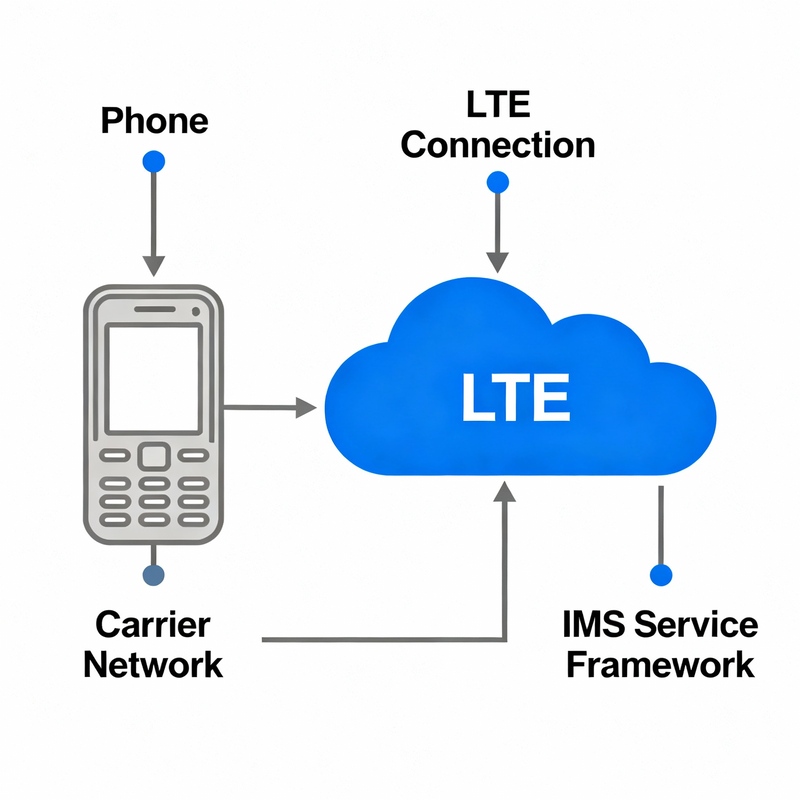
But VoLTE’s dependence on multiple systems creates complexity. The feature requires proper IMS (IP Multimedia Subsystem) service configuration, carrier network support, device compatibility, account-level provisioning, and correct network settings. When troubleshooting VoLTE problems, you’re essentially detective work across all these components to find which piece broke.
Common Symptoms of VoLTE Not Working
VoLTE issues typically present as the VoLTE icon disappearing from your status bar, calls defaulting to 3G/H+ instead of staying on LTE, the VoLTE toggle missing from settings, or inability to use data during calls. Recognizing these symptoms helps narrow down where the problem originates.
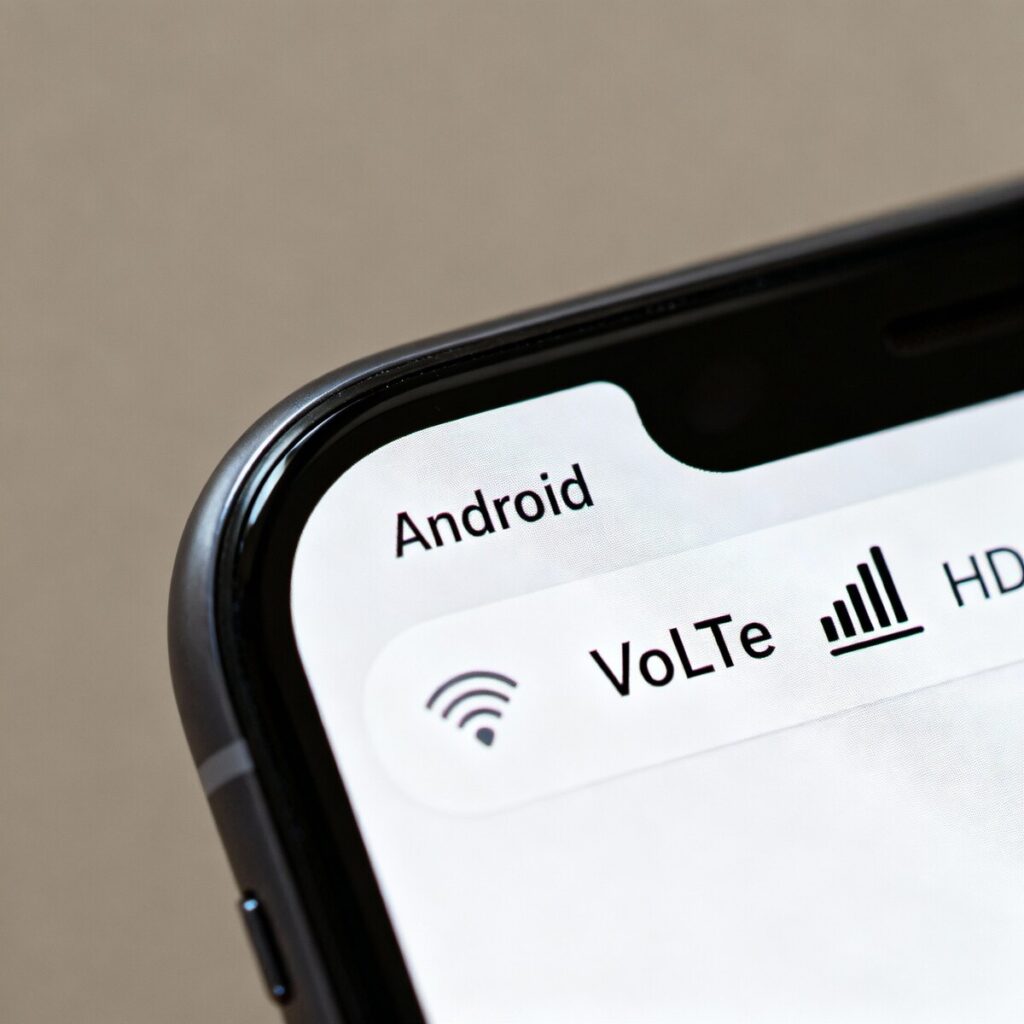
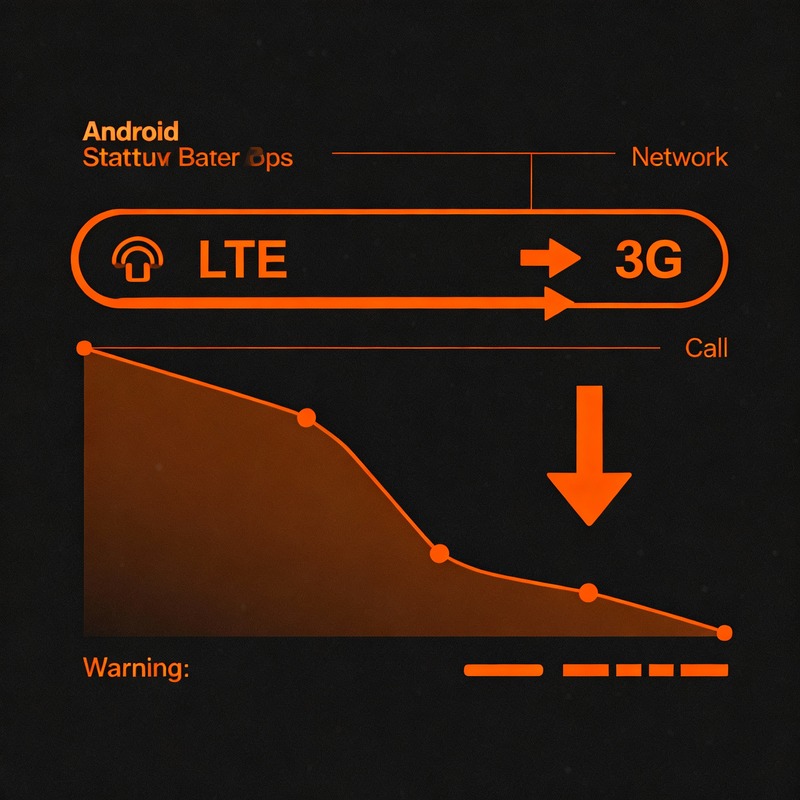
The most obvious symptom is the VoLTE indicator—usually displayed as “VoLTE,” “HD,” or “HD Voice” next to your signal bars—simply vanishing. One day it’s there, the next it’s gone. Sometimes this happens after a software update, carrier plan change, or seemingly out of nowhere. When you make a call, you might notice your network indicator briefly switching from “LTE” or “5G” to “3G” or “H,” which confirms calls aren’t using VoLTE.
Another telltale sign is when the VoLTE toggle itself disappears from your settings menu. You navigate to where it should be—usually under Mobile Network settings—but the option simply isn’t there. This often indicates either your device doesn’t support VoLTE on your current carrier, or carrier-side provisioning hasn’t enabled the feature for your account.
Call quality degradation is perhaps less obvious but equally problematic. If calls that were previously crystal-clear suddenly sound muffled, robotic, or filled with artifacts, VoLTE might have stopped working and your phone reverted to older voice technologies. Similarly, if you can no longer browse the internet or use apps while on calls—something that previously worked fine—VoLTE has likely failed.
Some users encounter error messages like “VoLTE call failed” or find calls repeatedly dropping mid-conversation. These issues often coincide with other IMS service problems since VoLTE is completely dependent on properly functioning IMS infrastructure.
Solution 1: Enable VoLTE in Settings (The First Check)
Navigate to Settings > Network & Internet > Mobile Network > Enable VoLTE (or Enhanced 4G LTE Mode) and toggle it on, then restart your device to activate the feature. This sounds almost too simple, but VoLTE settings sometimes disable themselves after updates, SIM changes, or factory resets.
The exact path to VoLTE settings varies by manufacturer, which I think causes unnecessary confusion. On Samsung devices, you’ll typically find it under Settings > Connections > Mobile Networks > VoLTE calls. Google Pixel phones usually place it at Settings > Network & Internet > SIMs > (select your SIM) > VoLTE. OnePlus devices might call it “Enhanced 4G LTE Mode” under Settings > Wi-Fi & Internet > SIM & Network > (select SIM) > Enhanced Communications.
Some carriers use different terminology entirely. AT&T often labels it “Enhanced 4G LTE Services” or “HD Voice.” Verizon calls it “Advanced Calling.” T-Mobile typically uses “VoLTE” or “Enhanced 4G LTE Mode.” This inconsistency means you might need to hunt through settings looking for any option related to advanced calling or LTE voice.
After enabling VoLTE, restart your device completely—don’t just toggle airplane mode, actually power it off and back on. The IMS service needs to reinitialize and register with your carrier’s network, which happens during the boot sequence. Give it a minute or two after restart before checking whether the VoLTE indicator appears.
If you don’t see a VoLTE toggle at all, that’s diagnostic information itself. It usually means either your device isn’t compatible with VoLTE on your carrier, your carrier hasn’t provisioned VoLTE for your account, or you need to enable it through different methods we’ll cover in later solutions. Don’t panic yet—this is just the first step.
Solution 2: Restart and Toggle Airplane Mode
Restart your Android device completely, then toggle airplane mode on for 30 seconds and off again to force network re-registration and refresh IMS service connections. This simple combination resolves VoLTE issues more often than you’d expect, particularly when problems appear suddenly.
Here’s what actually happens during this process: restarting your device clears temporary software glitches, refreshes system services, and reloads carrier configuration files. For VoLTE specifically, the restart allows the IMS service to reinitialize from scratch, potentially clearing corrupted registration data that was preventing proper functionality.
The airplane mode toggle adds another layer of network reset. When you enable airplane mode, your phone completely disconnects from cellular networks—the IMS service loses its connection and enters an idle state. Waiting 30 seconds ensures all network connections fully terminate and background processes complete. When you disable airplane mode, your phone goes through its full connection sequence: network search, carrier authentication, data connection establishment, and IMS service registration.
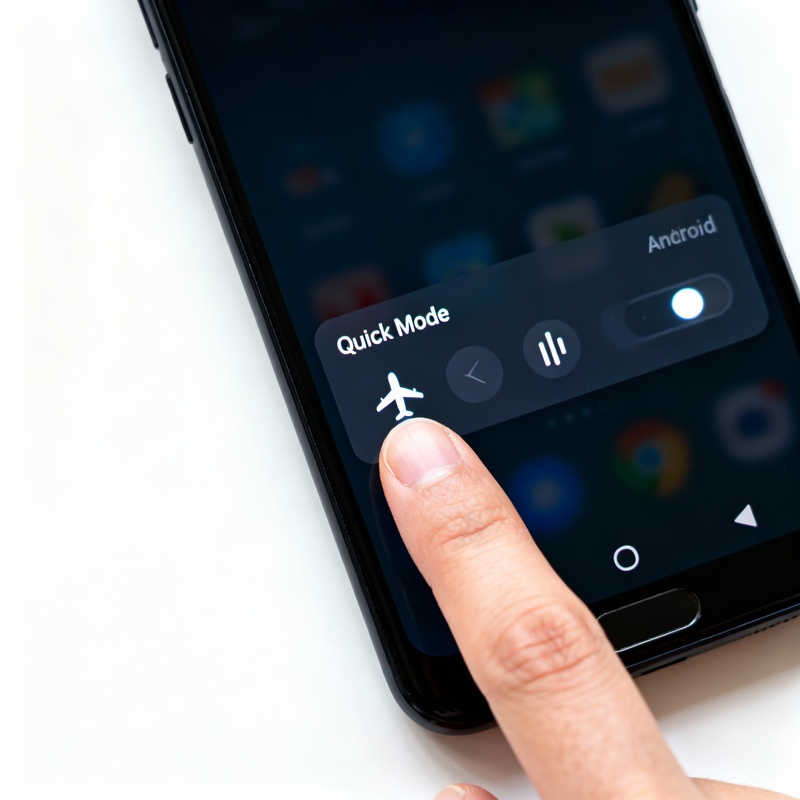
To maximize effectiveness, do this in the correct order. First, restart your phone completely by holding the power button and selecting “Restart.” Wait for the device to fully boot up and settle—give it a good minute after you see your home screen. Then swipe down from the top to access quick settings, tap the airplane icon to enable it, wait a full 30 seconds (I usually count to 35 just to be safe), then tap it again to disable.
Watch your status bar as the network reconnects. You should see signal bars return first, then your network type indicator (LTE or 5G), and finally—if everything worked—the VoLTE symbol should appear. If the VoLTE indicator doesn’t show up within two minutes of airplane mode being disabled, the issue requires deeper troubleshooting.
This solution works particularly well for temporary glitches caused by network congestion, brief carrier outages, or minor software hiccups. It’s quick, safe, and doesn’t change any settings or erase data, which makes it perfect as an early troubleshooting step.
Solution 3: Verify Carrier and Device Compatibility
Confirm your specific device model is certified for VoLTE on your carrier’s network by checking your carrier’s official compatibility list, as VoLTE requires explicit carrier support beyond just technical capability. This step is crucial, especially if you’re using an unlocked phone, imported device, or recently switched carriers.
Here’s the frustrating reality: just because your phone supports VoLTE technically doesn’t mean your carrier will enable it. Carriers maintain whitelists—official lists of approved devices—and they often refuse to activate VoLTE on phones not explicitly certified for their network. This is particularly common with Verizon and AT&T in the United States, though T-Mobile has historically been more permissive.
To check compatibility, visit your carrier’s official website and search for “VoLTE compatible devices” or “HD Voice supported phones.” Major US carriers maintain updated lists. You’ll need your exact model number—not just “Samsung Galaxy S23” but the specific variant like “SM-S911U” for the US unlocked version versus “SM-S911U1” for carrier-specific models. These distinctions matter because different variants have different certifications.
If your device isn’t on the official list, you have limited options. Some carriers will still enable VoLTE on technically-compatible devices if you contact support and specifically request it, though success varies. Others absolutely refuse, leaving you with either switching carriers or accepting that VoLTE won’t work on your current setup.
International devices present particular challenges. A phone purchased in Europe or Asia might support all the necessary LTE bands and VoLTE technology, but US carriers often won’t certify it because they haven’t tested that specific model. Conversely, US phones sometimes face similar issues when used with international carriers. This geographical compatibility problem has improved over recent years, but it hasn’t disappeared entirely.
For dual-SIM phones, also verify both SIM slots support VoLTE. Some devices only enable VoLTE on the primary SIM slot (usually SIM 1), while the secondary slot might be limited to older voice technologies. If your VoLTE-capable SIM is in slot 2, try moving it to slot 1 and restarting.
Solution 4: Check and Correct Preferred Network Settings
Set your preferred network type to “5G/4G/3G/2G (Auto)” or “LTE/3G/2G (Auto)” instead of limiting it to specific network types, as VoLTE requires LTE connectivity and overly restrictive settings can prevent it from functioning. This setting controls which network technologies your phone attempts to use for data and calls.
Navigate to Settings > Network & Internet > Mobile Network (or Connections > Mobile Networks on Samsung), then tap “Preferred Network Type” or “Network Mode.” You’ll see options like “5G/4G/3G/2G,” “LTE/3G/2G,” “LTE only,” “3G only,” etc. The exact options vary by device and carrier.
For VoLTE to work, your phone needs to maintain LTE connectivity during calls. If your preferred network is set to “3G only” or “2G only,” VoLTE cannot function because it specifically requires LTE. But here’s where it gets tricky: setting it to “LTE only” can also cause problems. When you’re in areas with weak LTE coverage, “LTE only” mode prevents fallback to 3G, which might result in no service at all.
The optimal setting is usually “5G/4G/3G/2G (Auto)” if your phone supports 5G, or “4G/3G/2G (Auto)” for 4G-only devices. This allows your phone to use the best available network while maintaining fallback options for areas with limited coverage. VoLTE will work when LTE is available, and calls will gracefully fall back to 3G when necessary—though with 3G shutdowns, those fallback scenarios are becoming increasingly rare.
After changing this setting, restart your device. Network mode changes don’t always take effect immediately, and a restart ensures the new configuration fully applies. Then test by making a call in an area with good LTE coverage while watching your network indicator—it should stay on LTE throughout the call if VoLTE is working.
Some manufacturers hide advanced network mode options by default. If you don’t see detailed network selection, try accessing the hidden testing menu by dialing *#*#4636#*#* in your phone app. This opens a testing menu where “Phone Information” or “Device Information” provides more granular network mode controls. However, be cautious here—changing wrong settings in this menu can cause connectivity issues.
Solution 5: Reset Network Settings
Reset network settings by going to Settings > System > Reset > Reset Network Settings to clear corrupted configurations and restore network-related settings to factory defaults, which often resolves persistent VoLTE issues. This is one of the most effective solutions for stubborn VoLTE problems, though it does have consequences you should understand first.
Network settings reset affects everything related to connectivity: Wi-Fi networks and passwords get erased, Bluetooth pairings disappear, cellular settings return to defaults, APN configurations reset, VPN settings are lost, and any custom network modifications you’ve made vanish. Essentially, it’s like your device has never connected to anything before. For VoLTE specifically, this wipes corrupted IMS registration data, invalid carrier configurations, and any settings conflicts that developed over time.
Before proceeding, I strongly recommend noting down your Wi-Fi passwords—particularly for your home and work networks—so you can easily reconnect afterward. If you use VPNs, have your configuration details handy. Take screenshots of any custom APN settings if you manually configured them, though most carriers automatically reconfigure these after a reset.
To perform the reset on most Android devices: open Settings, navigate to “System” or “General Management,” tap “Reset” or “Reset Options,” then select “Reset Network Settings” or “Reset Wi-Fi, Mobile & Bluetooth.” You’ll need to confirm the action, and your device will likely require your PIN, password, or biometric authentication. The process takes about 30 seconds, after which your phone might automatically restart.
Once your device reboots, give the cellular connection a few minutes to re-establish. The phone needs to reconnect to your carrier’s network, download current carrier configurations, and reinitialize the IMS service. During this time, you might see the signal indicator fluctuating—this is normal as connections stabilize.
After the network stabilizes, check whether the VoLTE toggle has appeared in your settings (if it was previously missing) and whether it’s enabled. Even if the toggle appears, you might need to manually enable it again. Then test by making a call and confirming the VoLTE indicator remains visible in your status bar during the conversation.
For detailed brand-specific instructions, our comprehensive guide on resetting network settings on Android covers Samsung, Google Pixel, OnePlus, Xiaomi, and other major manufacturers, as the exact steps vary slightly between brands.
Solution 6: Update Software and Carrier Settings
Check for and install both system software updates and carrier configuration updates, as manufacturers and carriers frequently release patches that fix VoLTE bugs and improve IMS service stability. Keeping your device updated is perhaps the most underrated solution for persistent connectivity issues.
Manufacturers take VoLTE seriously because it directly impacts the core functionality of phones as, you know, actual phones. When widespread VoLTE bugs are discovered—particularly after major Android version updates—fixes typically roll out within weeks. I’ve seen cases where VoLTE completely broke after an Android update, only to be fixed by a subsequent patch released two weeks later.
To check for system updates, open Settings, navigate to “About Phone” (sometimes under System first), then tap “Software Update” or “System Update.” If an update is available and you’ve been experiencing VoLTE issues, I strongly recommend installing it. These updates often specifically target IMS and VoLTE stability, even if the changelog doesn’t explicitly mention it.
Carrier configuration updates are equally important but less visible. These updates contain carrier-specific settings, network parameters, and IMS configurations that your device needs for proper VoLTE functionality. On some Android devices, carrier updates happen automatically in the background. Others prompt you to install them, appearing as notifications like “Carrier settings update available.”
You can sometimes manually check for carrier updates through Settings > About Phone > SIM Status or similar paths, though this varies significantly by manufacturer and carrier. Some carriers push these updates through their own apps—Verizon uses the My Verizon app, AT&T uses myAT&T, etc.—so keeping carrier apps updated can help ensure you receive configuration updates promptly.
After installing any updates—system or carrier—always restart your device completely. Updates often require a reboot to fully take effect, particularly for network-related changes. After restarting, give your phone a couple of minutes to settle before testing VoLTE functionality.
If you’re on an older Android version (Android 8 or earlier) and VoLTE suddenly stopped working, it’s worth checking whether your device still receives updates. Sometimes carriers deliberately disable VoLTE on outdated software versions for security or compatibility reasons, essentially forcing users to update or lose functionality. It’s frustrating, but it happens.
Solution 7: Verify SIM Card and Account Provisioning
Ensure your SIM card is properly inserted in the correct slot (usually SIM 1 for dual-SIM phones) and contact your carrier to verify VoLTE is activated on your account, as carrier-side provisioning issues frequently prevent VoLTE from working. Sometimes the problem isn’t your device at all—it’s on the carrier’s end.
Physical SIM issues are more common than you’d think. Power off your device completely (never remove the SIM while powered on), locate the SIM tray, use the included tool or a paperclip to eject it, then carefully remove the SIM card. Inspect the gold contacts for dirt, corrosion, or damage. If you see any debris, gently clean it with a soft, dry cloth. Check that the SIM isn’t chipped or cracked, as physical damage can prevent proper functionality.
When reinserting the SIM, make absolutely sure it’s seated properly in the tray with the cut corner aligned correctly. A slightly loose SIM can cause intermittent connectivity issues, including VoLTE problems. Push the tray back in firmly until it clicks into place. Then power on your device and wait for full network reconnection.
For dual-SIM devices, SIM slot matters. Most phones only support VoLTE on the primary SIM slot (SIM 1), while the secondary slot might be limited to basic voice and data. If your VoLTE-enabled SIM is currently in SIM 2, try swapping it to SIM 1. After swapping, restart your device and check whether VoLTE now functions.
Account-level provisioning is perhaps the most overlooked cause of VoLTE issues. Your carrier must explicitly enable VoLTE for your phone number on their network. Sometimes this provisioning gets corrupted, times out, or was never properly activated in the first place. This is particularly common after switching phones, changing plans, or porting your number from another carrier.
Contact your carrier’s technical support and specifically ask them to verify VoLTE is provisioned on your account. Don’t just accept “your plan includes VoLTE”—ask them to check the actual provisioning status on your line. I’ve encountered cases where customer service representatives needed to manually re-provision VoLTE or “refresh” the activation on the carrier’s backend systems.
If you recently switched carriers and ported your number, provisioning issues are especially likely. The porting process can sometimes interfere with feature activation. Ask your new carrier to verify all features transferred correctly and specifically enable VoLTE if it wasn’t automatically activated.
Some carriers also require specific plan types for VoLTE access. Budget MVNOs occasionally restrict VoLTE to higher-tier plans, though this has become less common. Verify your plan explicitly includes VoLTE/HD Voice/Advanced Calling—whatever your carrier calls it.
Solution 8: Check and Modify APN Settings
Verify your APN (Access Point Name) settings include “ims” in the APN Type field and match your carrier’s official configuration, as incorrect APN settings can prevent IMS service and VoLTE from functioning properly. This is more technical than other solutions, but it’s sometimes the exact fix needed for stubborn VoLTE issues.
APN settings control how your device connects to your carrier’s data network. For VoLTE to work, the APN must specifically include IMS (IP Multimedia Subsystem) support. Navigate to Settings > Network & Internet > Mobile Network > Access Point Names (the exact path varies by manufacturer). You should see at least one APN listed.
Tap on your active APN to view its settings. Look for the “APN Type” field—this is crucial. It should include “default,supl,mms,ims” or similar combinations that specifically include “ims”. If “ims” is missing from the APN Type field, VoLTE cannot function because the IMS service has no data pathway.
Before modifying anything, I strongly recommend taking a screenshot of your current APN settings. If changes cause problems, you’ll want to revert to the original configuration. You should also search online for your carrier’s official APN settings—search “your carrier name APN settings” to find the recommended configuration.
If you need to add “ims” to the APN Type field, tap on the APN, find “APN Type,” and edit it to include “ims” along with the existing types. It should look something like “default,supl,mms,ims” without spaces. Save the changes, then select that APN as your active APN if multiple are listed.
Some carriers prevent manual APN editing entirely, which is actually intentional. They want full control over these critical settings to prevent user errors that could break connectivity. If you can’t edit your APN or changes keep reverting after restart, that’s normal behavior on networks like Verizon and AT&T. In these cases, your APN should already be correctly configured—if VoLTE isn’t working, the problem lies elsewhere.
If you accidentally break your APN configuration and lose data connectivity entirely, don’t panic. Most devices have a “Reset to Default” option in the APN settings menu that restores carrier-provided configurations. Alternatively, the network settings reset we covered in Solution 5 will also restore default APN settings.
After modifying APN settings, always restart your device to ensure changes take full effect. The IMS service needs to reinitialize with the new APN configuration, which happens during boot.
Solution 9: Use Developer Options to Check IMS Status
Access hidden IMS diagnostic tools by enabling Developer Options (tap Build Number 7 times), then navigate to Developer Options > IMS Service Status to verify whether IMS is properly registered for VoLTE on your carrier’s network. This advanced troubleshooting step provides definitive information about whether VoLTE should be working.
First, enable Developer Options if you haven’t already. Open Settings, navigate to “About Phone,” then find “Build Number” and tap it seven times rapidly. You’ll see a countdown (“You are now 3 steps away from being a developer…”) until it finally confirms “You are now a developer!” This unlocks hidden diagnostic menus.
Return to your main Settings menu, open “System” (on some devices it appears directly in Settings), then select “Developer Options.” Scroll down until you find “IMS Service Status,” “Phone Information,” or “Testing.” The exact name varies by manufacturer. Tap it to open the diagnostic menu.
What you’re looking for is the IMS registration state. You should see various IMS services listed with their registration status. Look for “Voice over LTE” or “VoLTE” specifically. Next to it should be a status indicator—ideally “Registered” or “Available.” If you see “Not Registered,” “Unavailable,” or “Not Supported,” that’s diagnostic gold—it confirms VoLTE isn’t working and why.
“Not Registered” typically means your device supports VoLTE technically, but the IMS service cannot successfully register with your carrier’s network. This points to provisioning issues, account problems, or network-side restrictions. “Not Supported” usually indicates either your carrier doesn’t support VoLTE for your device, or your device legitimately doesn’t have VoLTE capability on your current carrier’s network.
This menu also sometimes shows detailed technical information like which IMS features your carrier supports, current network type, and even specific error codes. While much of this information is highly technical, simply verifying whether IMS shows as registered helps you determine next steps. If IMS is registered but VoLTE still doesn’t work, the issue might be with settings or software bugs. If IMS isn’t registered, you need to focus on carrier provisioning and account-level fixes.
Some Android builds also allow you to trigger manual IMS registration from this menu, though this is uncommon. If you see options like “Turn off radio” followed by “Turn on radio,” some users report success using this to force network re-registration. Turn off radio, wait 30 seconds, turn it back on, then wait for network reconnection. This is essentially a more aggressive version of airplane mode.
Be cautious in Developer Options generally. While checking IMS status is safe, other settings in this menu can cause problems if changed incorrectly. Stick to viewing IMS status unless you really know what you’re doing with the other options.
Carrier-Specific VoLTE Considerations
VoLTE implementation varies significantly between carriers, with Verizon and AT&T maintaining strict device whitelists while T-Mobile takes a more permissive approach, affecting both compatibility and troubleshooting strategies. Understanding your specific carrier’s approach can save hours of frustration.
Verizon VoLTE Issues
Verizon calls VoLTE “Advanced Calling” or “HD Voice,” and they maintain one of the strictest device certification policies. Since shutting down their CDMA network in December 2022, VoLTE is absolutely mandatory—phones without functioning VoLTE cannot make calls on Verizon’s network at all. If you brought an unlocked phone to Verizon, even if it technically supports all the right LTE bands, Verizon might refuse to enable VoLTE unless your exact model is on their certified whitelist. Contact Verizon support and specifically ask whether your device IMEI is certified for HD Voice on their network.
AT&T VoLTE Troubleshooting
AT&T similarly maintains a whitelist for VoLTE and Wi-Fi calling. They shut down their 3G network in February 2022, making VoLTE essential. AT&T has been particularly aggressive about blocking VoLTE on non-certified devices, even kicking some phones off their network entirely if they don’t support VoLTE. If your VoLTE isn’t working on AT&T, verify your device is on their official compatibility list. They sometimes require you to visit an AT&T store to provision VoLTE properly, particularly for phones purchased unlocked or from other carriers.
T-Mobile VoLTE Support
T-Mobile has historically been more willing to enable VoLTE on a wider range of devices, including many unlocked phones. They completed their 3G shutdown in July 2024. T-Mobile’s network merger with Sprint created some interesting complications—devices originally designed for Sprint sometimes use different IMS configurations. If you’re on T-Mobile with a formerly-Sprint SIM card, you might need a new T-Mobile SIM to enable full VoLTE functionality.
MVNOs and Budget Carriers
MVNOs (Mobile Virtual Network Operators) like Mint Mobile, Cricket, Visible, Metro by T-Mobile, and others use major carriers’ infrastructure but sometimes have different VoLTE provisioning processes. Some MVNOs have delayed VoLTE rollouts or restrict it to specific plans. If you’re using an MVNO and VoLTE isn’t working, verify your specific plan includes VoLTE—some budget plans exclude advanced features entirely. MVNO support also typically has less access to detailed IMS diagnostics compared to major carrier technical support.
When VoLTE Just Won’t Work: Alternative Solutions
If VoLTE remains non-functional after trying all troubleshooting steps, Wi-Fi calling provides an alternative for high-quality calls, or you may need to consider switching carriers or devices that have better compatibility with your current network. Sometimes you reach the limits of what troubleshooting can accomplish.
Wi-Fi calling offers many of the same benefits as VoLTE—high quality audio, the ability to use data during calls, and reliable connectivity—but it routes calls through Wi-Fi networks instead of cellular LTE. If your carrier supports Wi-Fi calling and your device is compatible, enabling Wi-Fi calling can serve as an excellent workaround when VoLTE won’t work. The calls sound just as good, and in areas with strong Wi-Fi but weak cellular signal, Wi-Fi calling might actually work better.
If you’ve verified your device simply isn’t compatible with VoLTE on your carrier—it’s not on the whitelist and the carrier refuses to enable it—you have three realistic options. First, you could switch carriers to one that supports VoLTE on your device. T-Mobile generally has the most permissive device compatibility. Second, you could upgrade to a device that’s certified for VoLTE on your current carrier. Third, you could accept the limitation and rely on Wi-Fi calling when possible.
For persistent issues that seem like they should work but don’t, factory resetting your device is the nuclear option. Before doing this, back up everything important. A factory reset clears all data, apps, and settings, returning your device to its original out-of-box state. This eliminates any software corruption, conflicting apps, or broken configurations that might prevent VoLTE from working. After factory reset, set up your device, install updates, and test VoLTE before restoring all your apps and data.
If even factory reset doesn’t help and your carrier confirms VoLTE should work on your device, you might be dealing with hardware issues. A failing modem or damaged antenna can prevent proper LTE connectivity, which obviously breaks VoLTE. This would require professional repair or device replacement.
Preventing Future VoLTE Issues
Maintain VoLTE functionality by promptly installing software updates, avoiding unnecessary network setting modifications, and verifying carrier compatibility before switching carriers or devices. Prevention is easier than troubleshooting after problems develop.
Keep your device updated—both system software and carrier configurations. Enable automatic updates if you’re comfortable with it, or at minimum check monthly for available updates. VoLTE relies on complex interactions between your device and carrier network, and updates frequently improve this stability.
Don’t tamper with network settings unless necessary. Advanced users sometimes modify APN settings, network modes, or other configurations to solve specific problems, but these changes can create VoLTE complications. If you must make changes, document exactly what you modified so you can revert if problems arise.
Before switching carriers, verify your device is on the new carrier’s VoLTE compatibility list. This is especially important if you’re moving to Verizon or AT&T with an unlocked device. Similarly, before buying a new phone, confirm it supports VoLTE on your current carrier if you plan to keep your current service.
If you travel internationally, understand that VoLTE might not work on foreign carriers even if your device supports their LTE bands. International VoLTE roaming is improving but remains inconsistent. Wi-Fi calling often works better for international travel since it doesn’t depend on carrier-specific IMS configurations.
Frequently Asked Questions
Why did VoLTE stop working after an Android update?
Android updates sometimes introduce bugs affecting VoLTE or change IMS configurations in ways that conflict with carrier settings, temporarily breaking functionality. This is particularly common with major version updates (like Android 13 to Android 14). Usually, carrier configuration updates or manufacturer patches follow within a few weeks to restore compatibility. Try restarting your device, toggling airplane mode, and checking for additional updates. If the problem persists beyond a week after updating, reset network settings or contact your carrier.
Can I use VoLTE on an unlocked phone?
VoLTE on unlocked phones depends on whether your specific carrier has certified that exact device model for VoLTE on their network. T-Mobile generally enables VoLTE on most unlocked phones that technically support it, while Verizon and AT&T maintain stricter whitelists. Check your carrier’s official VoLTE compatibility list for your exact model number. Even if your phone supports VoLTE technically, carriers may block it if your device isn’t certified.
Does VoLTE use more battery than regular calls?
No, VoLTE typically uses less battery than traditional circuit-switched calls because LTE radios are more power-efficient than maintaining separate voice and data connections. Many users actually notice improved battery life after switching to VoLTE. If you experience unusual battery drain coinciding with VoLTE activation, the issue is likely a software bug or IMS service malfunction rather than VoLTE itself.
Why does my VoLTE icon keep disappearing?
VoLTE icons disappearing and reappearing usually indicates unstable IMS service registration, weak LTE coverage, or carrier-side provisioning issues. If the icon disappears in specific locations, you’re likely experiencing coverage problems—your phone drops to 3G where LTE is unavailable. If it disappears randomly regardless of location, try restarting your device, resetting network settings, or contacting your carrier to verify account provisioning.
Will VoLTE work on both SIMs in a dual-SIM phone?
Most dual-SIM Android phones only support VoLTE on the primary SIM slot (SIM 1), though newer flagship devices increasingly support dual VoLTE on both slots simultaneously. Check your device specifications to see if it supports dual VoLTE. If VoLTE only works on SIM 1, you’ll need to choose which SIM gets VoLTE functionality by designating it as the primary SIM for calls.
Is VoLTE the same as Wi-Fi calling?
No, VoLTE routes calls over cellular LTE networks while Wi-Fi calling routes calls through Wi-Fi connections, though both use similar IMS technology and deliver comparable call quality. VoLTE requires cellular LTE coverage while Wi-Fi calling works anywhere with Wi-Fi, even if cellular signal is completely absent. Both features can coexist on the same device and are part of the broader IMS service framework.
Can I force enable VoLTE on an unsupported carrier?
Advanced users sometimes use tools like Pixel IMS app with Shizuku to force-enable VoLTE on carriers that technically support it but block it for uncertified devices, though success varies and isn’t guaranteed. This requires enabling Developer Options, installing third-party apps, and accepting potential instability. These methods work best on OnePlus, Xiaomi, Realme, and some other manufacturers. However, if your carrier genuinely doesn’t support VoLTE or your device lacks the necessary hardware, no software workaround will make it function.
Why does VoLTE work at home but not at work?
Location-specific VoLTE failures typically indicate weak LTE coverage or network congestion in problem areas rather than device issues. VoLTE requires stable LTE connectivity—if your work location has weak LTE signal, your phone might drop to 3G for calls, disabling VoLTE. Buildings with thick walls or basements particularly struggle with LTE penetration. Wi-Fi calling can help in these situations by providing an alternative pathway when cellular signal is weak.
Final Thoughts
VoLTE should be one of those features that just works, silently delivering better calls without you ever thinking about it. When it breaks, the frustration is real—I get it. But the good news is that most VoLTE issues have solutions. Start with the simple fixes: enable VoLTE in settings, restart your device, toggle airplane mode. If those don’t work, progressively move through more advanced solutions like network resets and carrier contact.
Remember that VoLTE depends on multiple components working together: your device hardware, Android software, carrier network, account provisioning, and IMS service configuration. When troubleshooting, you’re essentially checking each piece until you find what’s broken. Sometimes it’s a simple setting, sometimes it’s carrier provisioning, and occasionally it’s genuine incompatibility requiring hardware or carrier changes.
If you’re still struggling after trying these solutions, don’t hesitate to contact your carrier’s technical support. Be specific about what you’ve already tried—it saves time and helps them focus on carrier-side diagnostics. And if VoLTE simply won’t work on your current setup, remember that Wi-Fi calling provides a solid alternative for high-quality calls.
Has this guide helped you fix your VoLTE issues? I’d love to hear about your experience in the comments. Which solution worked for you? Did you encounter any carrier-specific quirks not covered here? Your insights might help other readers facing similar VoLTE challenges.




More Stories
Best Budget Mechanical Keyboards in 2026: What to Buy (and What to Avoid)
Vimeo to MP3 Converter: Best Tools That Actually Work (Free & Online)
How to Combine Videos on iPhone