

What Wi‑Fi Calling Actually Does on Android
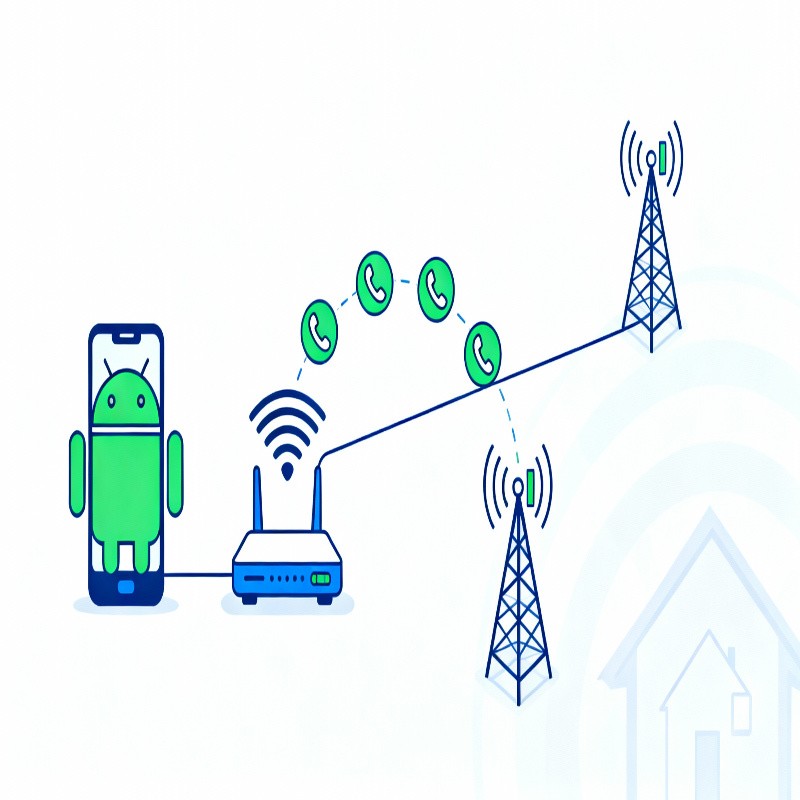
Wi‑Fi calling (also called VoWiFi) lets your Android phone place and receive normal carrier calls and SMS over a Wi‑Fi network instead of the cellular tower, using your regular phone number and plan. It’s not a separate app or service like WhatsApp or Skype—it’s your carrier service, routed through Wi‑Fi when conditions allow.
In practice, this means that if your mobile signal is weak or completely absent, but your Wi‑Fi is solid, your calls can still go through. Your caller ID stays the same, your minutes (if you still have those) are counted the same, and emergency calls are usually still supported, though the exact behavior depends on your carrier and country. Some carriers even prefer Wi‑Fi calling in crowded areas because it eases the pressure on congested towers.
Under the hood, Wi‑Fi calling relies on the same IP Multimedia Subsystem (IMS) used by VoLTE. When you enable it, your phone’s IMS service registers with your carrier over the internet instead of through the airwaves. That’s why Wi‑Fi calling issues so often overlap with VoLTE problems—both ride on the same invisible infrastructure.
Check If Your Device and Carrier Support Wi‑Fi Calling
Wi‑Fi calling will only work if both your Android phone supports it and your carrier has enabled it for your line and region. This is the first reality check before you sink time into troubleshooting something that can’t work on your current setup.
Most modern mid‑range and flagship Android phones support Wi‑Fi calling, but not all carriers enable it on every device. In some cases, the feature is technically supported by the hardware but blocked at the carrier level because the device isn’t on their “approved” list. This happens a lot with imported phones or unlocked models originally sold for another region.
A quick way to check basic support:
- Open Settings and use the search bar to type “Wi‑Fi calling”.
- If no result appears anywhere in settings, either your device firmware or your carrier configuration doesn’t expose it.
- If the option appears but is greyed out or shows a message like “Not supported by your carrier”, that’s a strong hint it’s a carrier limitation, not an Android bug.
For a more precise answer, your carrier usually has a support page listing “Wi‑Fi calling compatible devices” for your country. If your exact model (including variant) isn’t listed, the feature may simply not be provisioned—even if the hardware could do it in theory.
How to Enable Wi‑Fi Calling on Android (Step by Step)
To enable Wi‑Fi calling, find the Wi‑Fi Calling option in your Android settings, toggle it on, and set your preference to “Wi‑Fi preferred” or similar when available. The exact path varies by brand, but the logic is always the same: enable, choose preference, then test.
Typical Paths by Brand
On most phones, one of these paths will get you there:
- Samsung: Settings > Connections > Wi‑Fi Calling
- Google Pixel: Settings > Network & Internet > SIMs > [Your SIM] > Wi‑Fi Calling
- OnePlus: Settings > Mobile Network > Wi‑Fi Calling
- Other Android: Settings > Network & Internet (or Connections) > Mobile Network > Wi‑Fi Calling
If you still can’t find it, use the search bar in Settings and type “Wi‑Fi calling”. If that returns nothing at all, it’s either disabled at firmware level or not available through your carrier on that device/SIM.
Set Wi‑Fi Calling Preference
Many devices offer a preference like:
- Wi‑Fi preferred
- Cellular preferred
- Never use cellular (or similar, on some ROMs)
As a rule of thumb, choose:
- Wi‑Fi preferred if your cellular coverage is weak at home or work but your Wi‑Fi is strong.
- Cellular preferred if your mobile signal is generally solid and you only want Wi‑Fi calling as a backup.
After enabling and choosing your preference, connect to a known‑good Wi‑Fi network and place a test call. On many phones, you’ll see a tiny “Wi‑Fi” phone icon next to the carrier name or in the status bar when a call flows over Wi‑Fi.
Step 1: Confirm You Have a Stable Wi‑Fi Connection
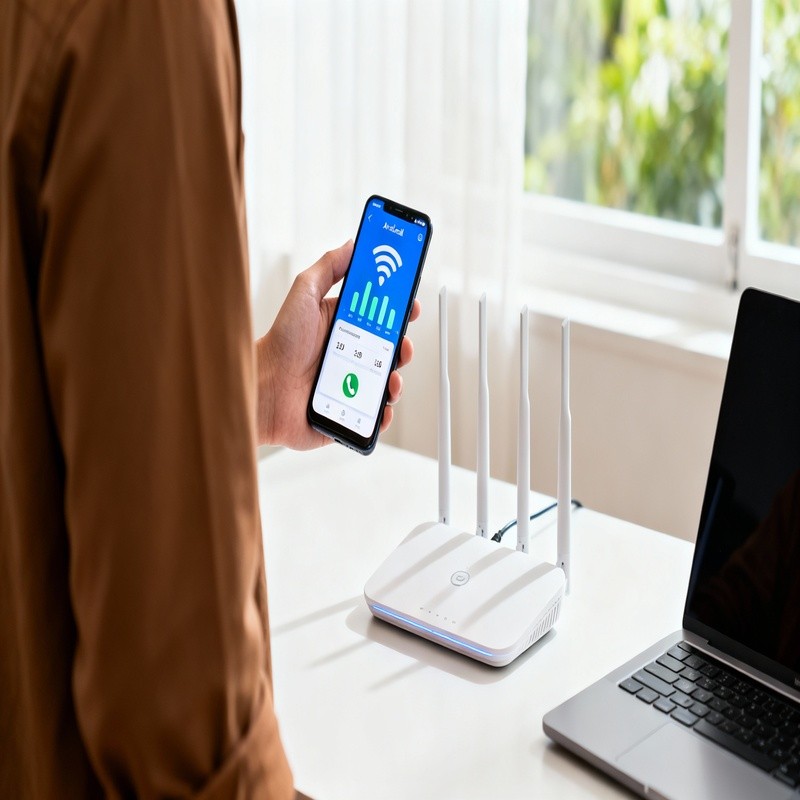
Wi‑Fi calling will fail or behave strangely if your Wi‑Fi signal is weak, unstable, or filtered by restrictive network rules (like some office or hotel networks). Before blaming your phone, make sure the “road” it’s trying to use isn’t full of potholes.
Here’s a quick checklist:
- Run a simple speed test on your phone while connected to the same Wi‑Fi network.
- Walk closer to the router and test from the same room—thick walls and floors can wreck call stability.
- Try a different Wi‑Fi network entirely (for example, a friend’s home connection or a mobile hotspot) to see if Wi‑Fi calling suddenly starts working there.
If Wi‑Fi calling works fine on one network but not another, that’s a sign the problem lies with the router, firewall, or ISP of the failing network. Some corporate and public networks block the ports or protocols Wi‑Fi calling needs, often without saying so explicitly.
When in doubt, restart your router as well: unplug it for 30–60 seconds, plug it back in, wait a couple of minutes for it to fully boot, then reconnect your phone and test again. It’s a bit cliché, but routers do get cranky over time.
Step 2: Restart Phone and Toggle Airplane Mode
A full restart plus an airplane‑mode toggle forces your device to rebuild its network and IMS registrations, which often clears Wi‑Fi calling glitches. It feels basic, but it’s surprisingly effective.
Try this sequence:
- Restart your Android phone normally.
- After it boots and reconnects to Wi‑Fi, swipe down for Quick Settings.
- Turn on Airplane Mode and wait 30 seconds.
- Turn Airplane Mode off again and let mobile + Wi‑Fi reconnect fully.
That short disconnect gives your phone a clean slate to re‑establish its link with both the Wi‑Fi router and your carrier’s IMS servers. If Wi‑Fi calling suddenly appears after this, you were likely dealing with a temporary registration hiccup rather than a deeper configuration problem.
Step 3: Make Sure VoLTE Is Working First
On most carriers, Wi‑Fi calling depends on VoLTE (Voice over LTE) being supported and active on your line and device. If VoLTE itself is broken, Wi‑Fi calling often fails as a side effect.
A few quick tests:
- When you make a regular call on mobile data only, does your phone stay on 4G/LTE, or does it drop to 3G/H?
- Can you browse the internet while in a normal cellular call (no Wi‑Fi)?
- Do you see a “VoLTE”, “HD”, or similar icon in the status bar during calls in strong coverage?
If calls revert to older networks or data stops working during calls, you likely have a VoLTE issue. In that case, it’s worth walking through the dedicated VoLTE not working on Android troubleshooting guide first. Once VoLTE is solid, Wi‑Fi calling usually behaves much better because the IMS foundation under both features is stable.
Step 4: Check IMS Registration Status (Advanced but Very Helpful)
If IMS (IP Multimedia Subsystem) is not registered on your device, Wi‑Fi calling and VoLTE simply cannot work, no matter how many times you toggle the Wi‑Fi calling switch. This is the “heartbeat” your carrier looks for.
On some Android phones, you can peek behind the curtain using the hidden testing menu:
- Open the Phone app.
- Dial:
*#*#4636#*#*(on some devices this opens the “Testing” menu automatically). - Tap “Phone information” or similar.
- Look for “IMS Status” or “IMS Registration”.
You’re hoping to see something like “IMS Registration: Registered”. If it says “Not Registered” or “Unavailable”, that tells you the device hasn’t successfully registered with your carrier’s IMS servers. That can be due to:
- Account provisioning issues on the carrier side.
- Unsupported device/firmware combination.
- Network or APN misconfiguration on the phone.
Not every device exposes this menu, and some carriers block it. If it doesn’t appear or is missing IMS information, don’t worry too much—but if you can see it and it says “Not Registered”, contacting your carrier and mentioning “IMS not registered, Wi‑Fi calling/VoLTE not working” can nudge support in the right direction.
Step 5: Reset Network Settings on Android
Resetting network settings clears Wi‑Fi, mobile, Bluetooth, and VPN configurations back to factory defaults, often fixing stubborn Wi‑Fi calling issues caused by corrupted or conflicting settings. It’s a bit of a blunt instrument, but a very effective one.
Before you do this, a quick warning: you’ll lose saved Wi‑Fi networks and passwords, paired Bluetooth devices, and custom APNs or DNS settings. Your apps and personal data remain untouched, but you’ll need to reconnect to Wi‑Fi networks afterward.
To reset network settings on most devices:
- Open Settings.
- Go to System (or General Management on Samsung).
- Tap Reset or Reset Options.
- Select “Reset Network Settings” or “Reset Wi‑Fi, Mobile & Bluetooth”.
- Confirm and wait for the process to complete.
After the reset:
- Reconnect to your main Wi‑Fi network.
- Re‑enable Wi‑Fi calling in settings if it turned off.
- Restart your phone once more for good measure.
If you want brand‑specific steps across Samsung, Pixel, OnePlus, Xiaomi, and more, you’ll find those in the dedicated Reset Network Settings on Android (All Brands) guide.
Step 6: Double‑Check APN and Carrier Settings
Incorrect or outdated APN settings can break IMS registration and prevent Wi‑Fi calling from establishing a proper tunnel to your carrier. Most people never touch APN settings—and that’s usually good—but sometimes they get out of sync.
To review your APN (Access Point Name):
- Go to Settings > Network & Internet (or Connections) > Mobile Network.
- Tap “Access Point Names”.
- Check that only your carrier’s official APN is active (usually marked with a dot or checkmark).
On some advanced setups, there may be a separate APN for IMS traffic—often literally named “ims”—with APN type: ims. That’s normal on certain carriers and helps route Wi‑Fi calling and VoLTE traffic.
If you’ve edited your APN manually in the past, it’s worth comparing each field against your carrier’s official APN page and correcting anything that’s off. If you’re not sure what you changed, use the “Reset to default” option (if available) or rely on the network settings reset you already performed.
Not all carriers let you edit APNs at all; some completely lock them down on purpose. In that case, if mobile data works fine, your APN is probably not the real culprit and you can move on.
Step 7: Carrier Provisioning and Plan Limitations
Even if your phone supports Wi‑Fi calling, your carrier might not have it enabled on your specific line, SIM, or plan. This is where a quick, slightly awkward call to customer support becomes necessary.
When you contact your carrier, be specific. Instead of saying “Wi‑Fi calling isn’t working,” try something like:
- “Can you check if Wi‑Fi calling (VoWiFi) is provisioned on my line?”
- “Is VoLTE and Wi‑Fi calling enabled for my phone number and device IMEI?”
On some carriers, support might need to “refresh” or re‑provision your line. Others require you to enable Wi‑Fi calling via their app before it appears on the network side. Certain budget or legacy plans quietly exclude Wi‑Fi calling, even if the marketing page makes it sound universal.
If you’re using an MVNO (a smaller carrier that rides on a big network like Verizon, AT&T, or T‑Mobile), the feature might be more restricted. Some MVNOs only recently added Wi‑Fi calling, and support agents may not immediately recognize IMS‑related questions. Patience helps here, unfortunately.
Step 8: Router and Network Settings That Break Wi‑Fi Calling
Some Wi‑Fi networks silently block Wi‑Fi calling traffic through firewalls, QoS rules, or misconfigured DNS, causing calls to fail or never initiate. If Wi‑Fi calling works on one network and not another, the router is a prime suspect.
If you control the router (home or small office), you can try:
- Disabling overly strict firewall settings or SIP ALG (Session Initiation Protocol helpers) if present.
- Turning off any aggressive QoS rules that prioritize or block VoIP in unexpected ways.
- Switching your phone from 5 GHz to 2.4 GHz or vice versa to see if one band is more stable.
- Using standard DNS like Google (8.8.8.8 / 8.8.4.4) or Cloudflare (1.1.1.1) instead of ISP‑provided DNS if you suspect weird filtering.
On large corporate or hotel networks, you usually don’t have that level of control. There, your only real tests are:
- Try another Wi‑Fi network and see if Wi‑Fi calling works normally there.
- Use a VPN to tunnel traffic (this sometimes helps, sometimes hurts; it’s worth a quick experiment).
If Wi‑Fi calling consistently fails only on one particular network, but works everywhere else, the problem isn’t your phone or your carrier—it’s those local network policies.
Step 9: When to Consider a Factory Reset or Device Change
If you’ve tried all configuration fixes and your carrier confirms that Wi‑Fi calling should work on your device and line, a factory reset is the last realistic software step. Anything beyond that starts looking like a hardware or compatibility problem.
A factory reset will erase your apps, accounts, and settings, so always back up first—photos, messages, authenticator codes, everything. After resetting:
- Set up your device cleanly without restoring every setting at once.
- Install system and carrier updates.
- Before installing tons of apps, enable Wi‑Fi calling and test it.
If Wi‑Fi calling works on a clean system but breaks after you restore certain apps or configurations, you’ve at least narrowed it down. If it still doesn’t work at all, even fresh, then either:
- Your device’s firmware simply doesn’t support Wi‑Fi calling properly on that carrier, or
- There’s a subtle hardware issue affecting Wi‑Fi or modem behavior.
In those rare cases, you may have to choose between changing carriers (to one that supports your device better) or changing devices (to one that’s certified and well‑supported by your current carrier). It’s not a fun choice, but it’s better than living with a “smart” phone that can’t call where you need it most.
Wi‑Fi Calling vs Other Options: What If It’s Still Unreliable?
If Wi‑Fi calling remains spotty even after thorough troubleshooting, combining it with messaging apps, VoIP services, and solid VoLTE can still give you a reliable communication toolkit. You’re not completely stuck just because one feature is stubborn.
For example:
- Use Wi‑Fi calling where it works reliably (home, office) and fall back to strong VoLTE where you have good signal.
- Rely on apps like WhatsApp, Signal, or Telegram for longer calls over Wi‑Fi when carrier calling is flaky.
- Keep an eye on overall IMS health—if both VoLTE and Wi‑Fi calling frequently misbehave, revisit the broader IMS service and Android IMS troubleshooting guide.
In a way, troubleshooting Wi‑Fi calling is like hiking a trail that keeps vanishing behind trees. Sometimes the path is clear and marked, sometimes you have to trust your experience and work around the obstacles. With the steps in this guide, you at least have a proper map—and a few escape routes if the official trail turns into a dead end.



More Stories
Best Budget Mechanical Keyboards in 2026: What to Buy (and What to Avoid)
Vimeo to MP3 Converter: Best Tools That Actually Work (Free & Online)
How to Combine Videos on iPhone